Files, templates and projects
The .ktex file
A kTeX document is one .ktex file: a zip holding the document, its LaTeX and its images. That makes it easy to email or move.
- Each time you save, kTeX also writes the plain LaTeX to a hidden
.khervefolder next to the document, as<name>.tex. - Older KherveTeX files (
.ktexz,.kdocz) open normally. They are re-saved as.ktex, and the old file is left untouched. - Save As… can also save a plain-JSON copy (
.ktex.json).
| Command | Shortcut |
|---|---|
| New | Ctrl+N |
| New window | Ctrl+Shift+N |
| Open… | Ctrl+O |
| Open in new window… | Ctrl+Shift+O |
| Save | Ctrl+S |
| Save As… | Ctrl+Shift+S |
| Close document | File menu |
File ▸ Open Recent and the status-bar menu list recent files. File ▸ Show in file explorer (Finder on Mac) reveals the file. You can also drop a file onto the window to open it.
Importing
You can open these directly, or use File ▸ Import:
- LaTeX (.tex): read into the visual editor.
- Word (.docx): headings, lists, tables, equations and images are converted; images are extracted.
- Markdown (.md).
- PDF: the text structure (headings, paragraphs) is detected.
An imported file opens as a new document. Use Save As to keep it as .ktex.
If an imported document has chapters, kTeX offers to Split into documents: split by chapter, split by section, or keep it as one document. Splitting creates a project in a new folder (see Projects below).
Exporting
| Export | Where |
|---|---|
| Home ▸ Export .pdf, File ▸ Export, Compile ▸ Output | |
| Word (.docx) | Home ▸ Export .docx, File ▸ Export |
| LaTeX (.tex) | File ▸ Export ▸ Export .tex… |
| LaTeX package (.zip): the .tex plus images and styles, ready for a journal | File ▸ Export ▸ Export LaTeX package (.zip)… |
In Save As, choosing Word, PDF or LaTeX as the type exports a copy, and your document keeps its .ktex file.
Templates and examples
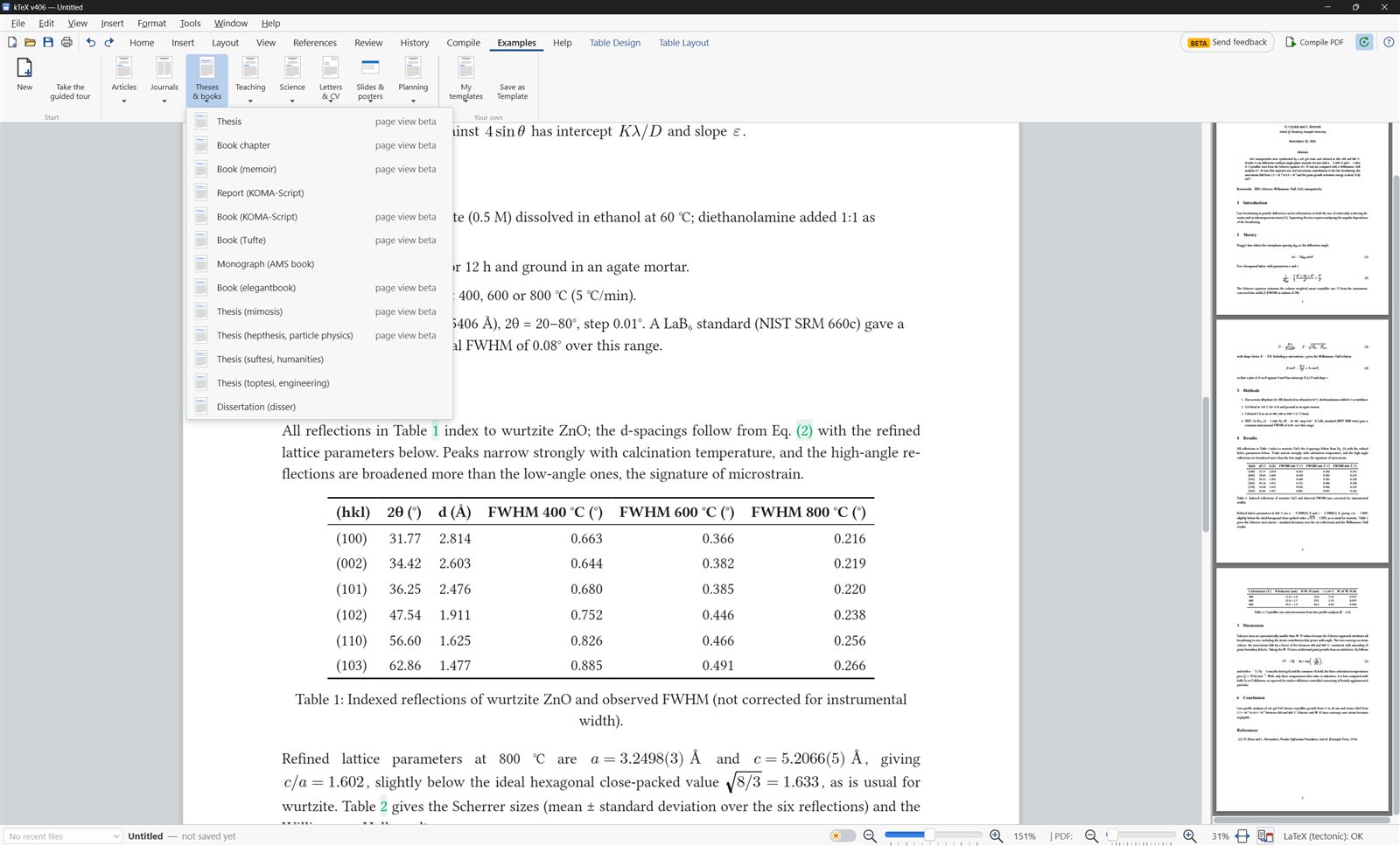
The Examples tab, File ▸ New from Template, and the Welcome page all open the template gallery. Every template is a complete, compilable example you can write over.
- Start: Welcome tour, Blank document.
- Articles:
- Single-column article, Two-column article, Three-column document
- Maths-heavy document, KOMA-Script article
- White paper, Literature review, Research proposal
- Journals:
- Elsevier journal preprint, Elsevier two-column
- IEEE conference paper, APS Physical Review (RevTeX), ACS journal article
- Springer LNCS conference paper, Springer Nature journal article
- ACM conference paper, AMS mathematics paper, MNRAS astronomy paper, APA 7 psychology paper
- Theses & books:
- Thesis, Book chapter, Book (memoir), Report and Book (KOMA-Script)
- Book (Tufte), Monograph (AMS book), Book (elegantbook)
- Thesis (mimosis), Thesis (hepthesis, particle physics), Thesis (suftesi, humanities), Thesis (toptesi, engineering), Dissertation (disser)
- Teaching: Lab report, Exam, Homework / problem set, Lecture notes, Handout (Tufte), Quantum mechanics lecture.
- Science:
- XPS surface-science paper, XRD / nanomaterials paper, DFT computational study, Battery / electrochemistry paper
- Clinical trial (CONSORT), Ecology field study
- Grant proposal (work packages), Response to reviewers, Lab SOP / risk assessment
- Letters & CV: Letter, KOMA-Script letter, Academic CV, Europass CV, Technical memo, How-to guide.
- Slides & posters: Presentation (beamer), Poster (tikzposter), Poster (a0poster), Standalone figure (TikZ).
- Planning: Daily, Weekly and Monthly planner, Calendar, Meeting minutes.
Some journal, book and poster classes are marked beta. They compile correctly, but the on-screen page view may not yet match the PDF page for page. The PDF is always the reference.
Your own templates
File ▸ Save as Template… (or Examples ▸ Save as Template…) stores the current document as a template. It then appears under My templates.
Document settings
File ▸ Document properties… has four tabs:
- Metadata: Title, Author (one per line), Document class.
- Text:
- Editor font: what you see while writing.
- Output font: Computer Modern, Times Roman, Palatino, Charter, Linux Libertine, Helvetica or Courier.
- Body size: 10, 11 or 12 pt.
- Line spacing, and Indent first line of every paragraph.
- Layout: margins in cm, and 1, 2 or 3 columns.
- Packages: extra LaTeX packages to load, one per line.
Format ▸ Manage styles… lists the bundled LaTeX class and style files (.cls, .sty, .bst). Use Import style file… to add a journal's own class, Remove one you added, or Open user folder.
Projects: theses and books
A project joins several documents (chapters) into one book or thesis.
- Start one with File ▸ Project ▸ New project…, or New project (thesis, book)… on the Welcome page.
- Split into documents… turns one long document into a project.
- Open project…, Save project and Close project are on the same menu.
The Documents panel (Ctrl+5):
- A tick box for each document chooses which ones are included.
- It shows each document's page range and chapter number; Auto page numbers keeps them consecutive.
- Drag documents to reorder them.
- ▶ Compile typesets the whole book.
- Right-click a document for:
- Add document…: new, or an existing file.
- Move up/down, Remove from project…, Rename label….
- Set chapter number… and Set start page….
- Page numbering: Arabic or Roman, for example for the front matter.
- Section type.