KhervePaint
AvailableDraw anything scientific — by hand, from the library, or by AI.
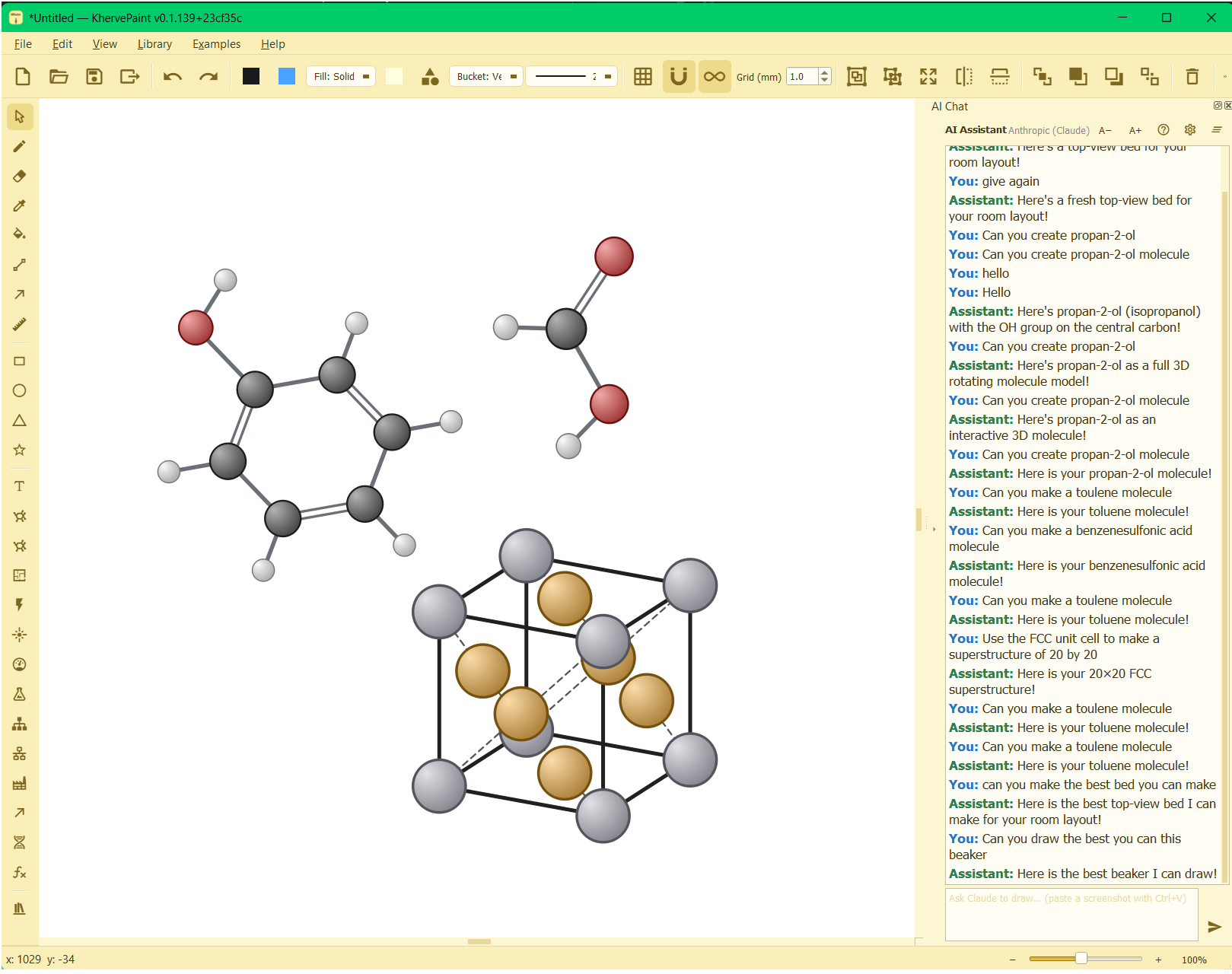
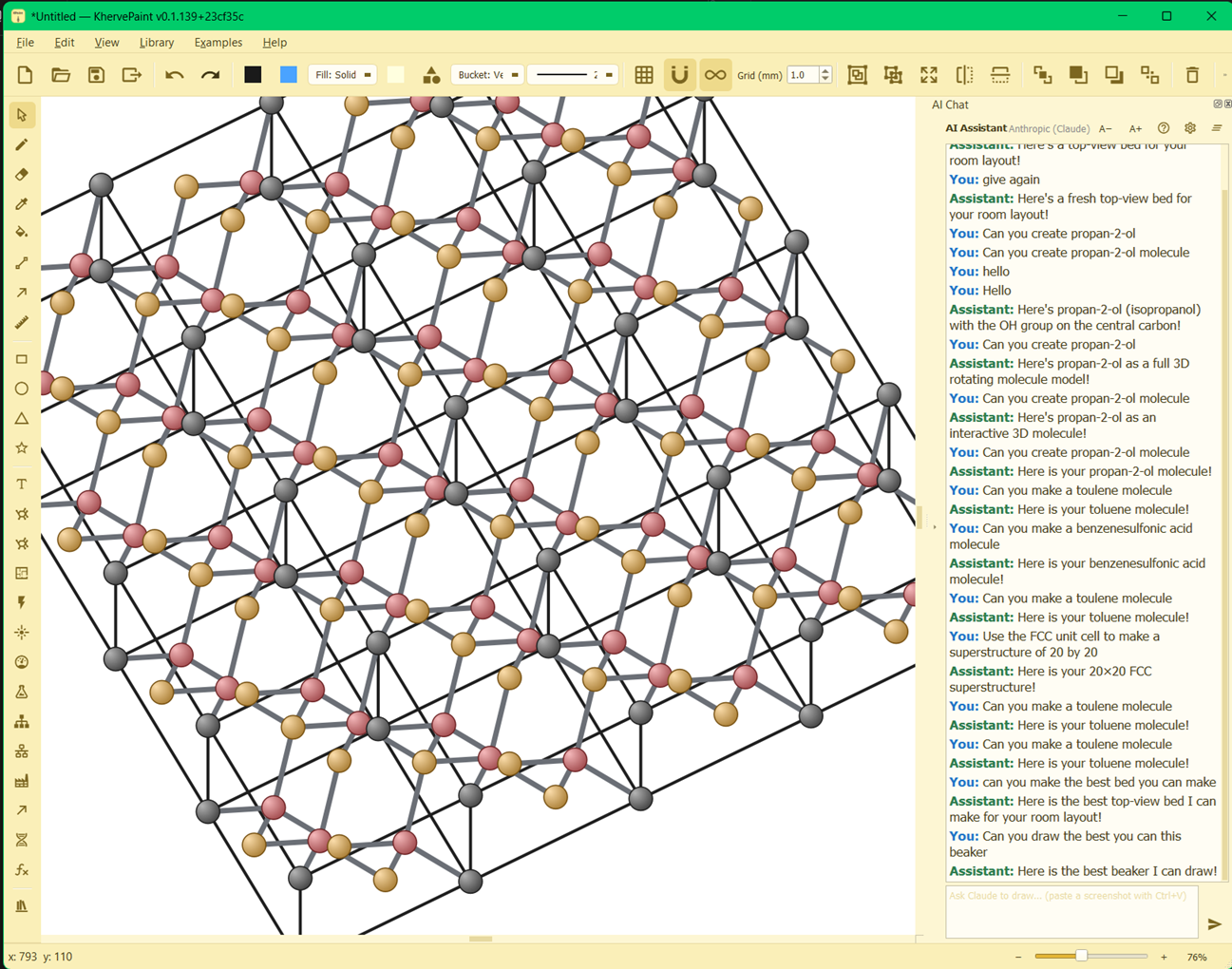
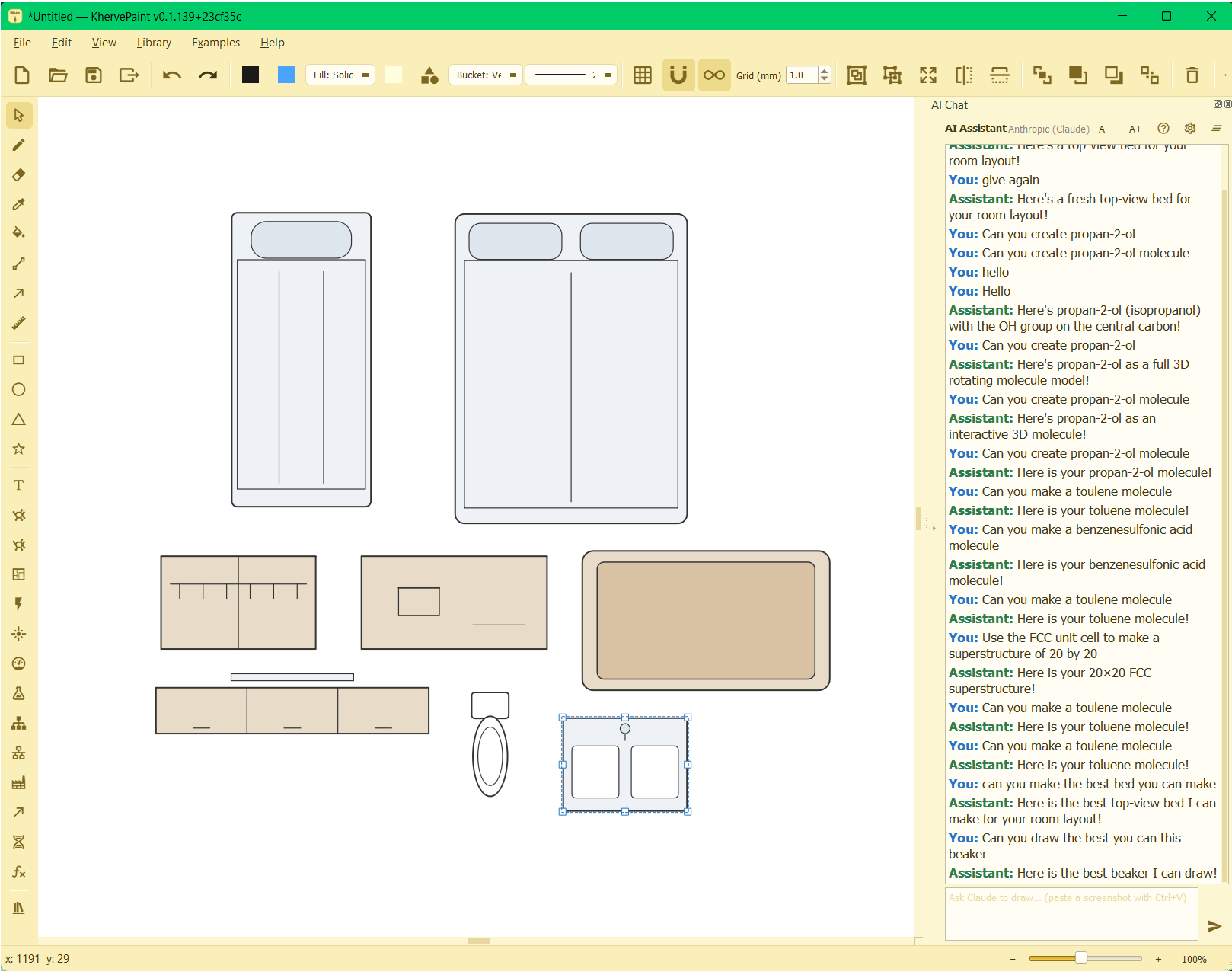
Everything you expect from a graphics program — every drawing tool, raster and vector layers, grid and snapping, precise dimension lines, and editable-SVG files — and a great deal more. KhervePaint ships a vast library of ready-made objects covering most fields of science, and it draws molecules and crystal unit cells, even stacking unit cells into full superstructures. And its built-in AI assistant will draw for you from a plain-language prompt — ask for a bed, a piece of apparatus, or almost any molecule, and it appears as real, editable shapes on the canvas.
Watch KhervePaint
KhervePaint + AI — Drawing, Molecules and Lab Figures by Prompt
The AI side of KhervePaint: ask in plain language for a molecule, a piece of lab apparatus or a whole figure, and it lands on the canvas as real, editable, undoable shapes — not a flat image.
Open on YouTubeAttributes
- A full drawing toolkit — pencil, lines, arrows, rectangles, circles, ellipses, polygons, text; select, move, resize, rotate, group and ungroup
- Raster + vector on one canvas — open a PNG, bucket-fill regions, and draw fully editable shapes on top
- Grid overlay with snap-to-grid, and dimension lines with a live measured length in mm
- A vast object library spanning most scientific fields — chemistry, biology, electronics, lab and vacuum apparatus, and more
- Molecules and crystal unit cells — place ball-and-stick models and stack unit cells into full superstructures
- Saves as editable SVG by default; .kpaint lossless JSON; export to PNG or PDF
AI built in
A dockable AI assistant draws for you: ask in plain language for almost anything — a bed, a piece of lab apparatus, or most molecules — and it arrives as real, editable, undoable shapes on the canvas. Choose Claude, ChatGPT, Mistral, Ollama, or a local endpoint.
How to install
KhervePaint is free and its source is public, but it is not signed with a paid Microsoft or Apple developer certificate. So the first time you open it, Windows and macOS say they cannot verify it and may even call it possible malware. That is the standard warning for every unsigned app, not a detection of anything. You approve it once, as shown below, and it then opens normally. Only this one app is allowed; nothing else on your computer is changed.
macOS (Apple Silicon and Intel)
1Open the .dmg and drag KhervePaint into Applications
Double-click the downloaded
.dmgfile (in your Downloads folder). In the window that opens, drag the KhervePaint icon onto the Applications folder. Then eject the disk image.2Open KhervePaint once — macOS blocks it. Click “Done”
Open your Applications folder and double-click KhervePaint. macOS shows “KhervePaint” Not Opened — Apple could not verify “KhervePaint” is free of malware…
Click Done. Do not click Move to Bin. This attempt is needed: it is what makes the Open Anyway button appear in the next step.
3Open System Settings → Privacy & Security
Click the Apple menu at the top-left of the screen, choose System Settings…, then click Privacy & Security in the left-hand list (scroll the list down if you don’t see it).
4Scroll down to “Security” and click “Open Anyway”
Scroll the right-hand side all the way down, past the Privacy items, to the Security heading. Under it you will see “KhervePaint” was blocked to protect your Mac. Click Open Anyway.
The button appears only for about an hour after step 2. If it is missing, repeat step 2 and come back.
5Confirm with “Open Anyway” and your password
macOS asks once more: click Open Anyway, then type your Mac login password (or use Touch ID) and confirm.
KhervePaint starts. From now on it opens normally with a double-click, and updates install without asking again.
macOS 14 Sonoma and older: instead of steps 3–5, right-click (or Control-click) KhervePaint in Applications, choose Open, then Open again.
Message says the app “is damaged and can’t be opened”? That is the same block. Open Terminal (Applications → Utilities), paste this line, press Return, and open the app again:
xattr -dr com.apple.quarantine "/Applications/KhervePaint.app"
Windows (64-bit)
1If your browser warns about the download, choose “Keep”
Chrome or Edge may say the setup file isn’t commonly downloaded. Open the downloads list, click ⋯ next to the file and choose Keep (in Edge: Keep → Show more → Keep anyway).
2Run the setup file — click “More info”
Double-click the downloaded setup file. Microsoft Defender SmartScreen shows a blue Windows protected your PC window. Click the small More info link.
3Click “Run anyway”, then follow the installer
A Run anyway button appears at the bottom. Click it, answer Yes if Windows asks to allow changes, then click Next through the installer and Finish. KhervePaint is in the Start menu and opens normally from then on.
Built with
A modern stack of well-known scientific Python libraries.
Documentation
Getting started
Install the requirements and run python KhervePaint.py. You draw on one canvas that mixes a raster layer and a vector layer; pick a tool from the toolbar and start drawing, or drop a PNG in to fill and edit its pixels.
Raster and vector together
Open a PNG and bucket-fill regions into the raster layer, then draw fully editable vector shapes — pencil strokes, lines, arrows, dimension lines (with a live length label in mm), rectangles, circles, ellipses, polygons and text — on top. Select, move, resize, rotate, and group items; the grid overlay snaps as you draw.
Scientific stencils & molecules
Drop in ready-made chemistry, biology, and electrical symbols, or place molecule and crystal ball-and-stick models (like a benzene ring or a diamond unit cell) straight onto the canvas as editable items.
File formats
Documents save as editable SVG by default — reopening one breaks it back into editable items. A lossless .kpaint (JSON) format is also available, and Export writes a flattened PNG or a single-page PDF.
Versions
Disk image for Apple Silicon and Intel.
Crystals get a toolbar palette of their own — supercells up to 30 repeats per axis, per-cell tilts that model a defect rather than a detached grain, and VESTA-style translucent coordination polyhedra. KhervePaint is now an MCP server too: connect Claude and it drives the real application through 26 tools, and can see a PNG of the canvas to check its own work.
New Measure menu — scale bar, mm edge rulers, protractor, and a live shape-size readout in mm. Right-click the canvas for tools and the symbol library. The eraser and pencil now edit the pixels of imported images.
Hybrid raster + vector drawing for scientific figures.
Part of the Kherve Tools family
Applications made by a scientist, for scientists.