KhervePDF
AvailableA PDF viewer and annotation editor with built-in Git history.
Tabbed PDF viewing with a full annotation toolbox — pen, highlight, text, arrows, shapes, sticky notes, signatures, redaction — plus page operations (merge, split, rotate, reorder), form filling, and text search. Every document gets its own Git repository with auto-commit and a history browser.
sudo apt install ./<file>.deb.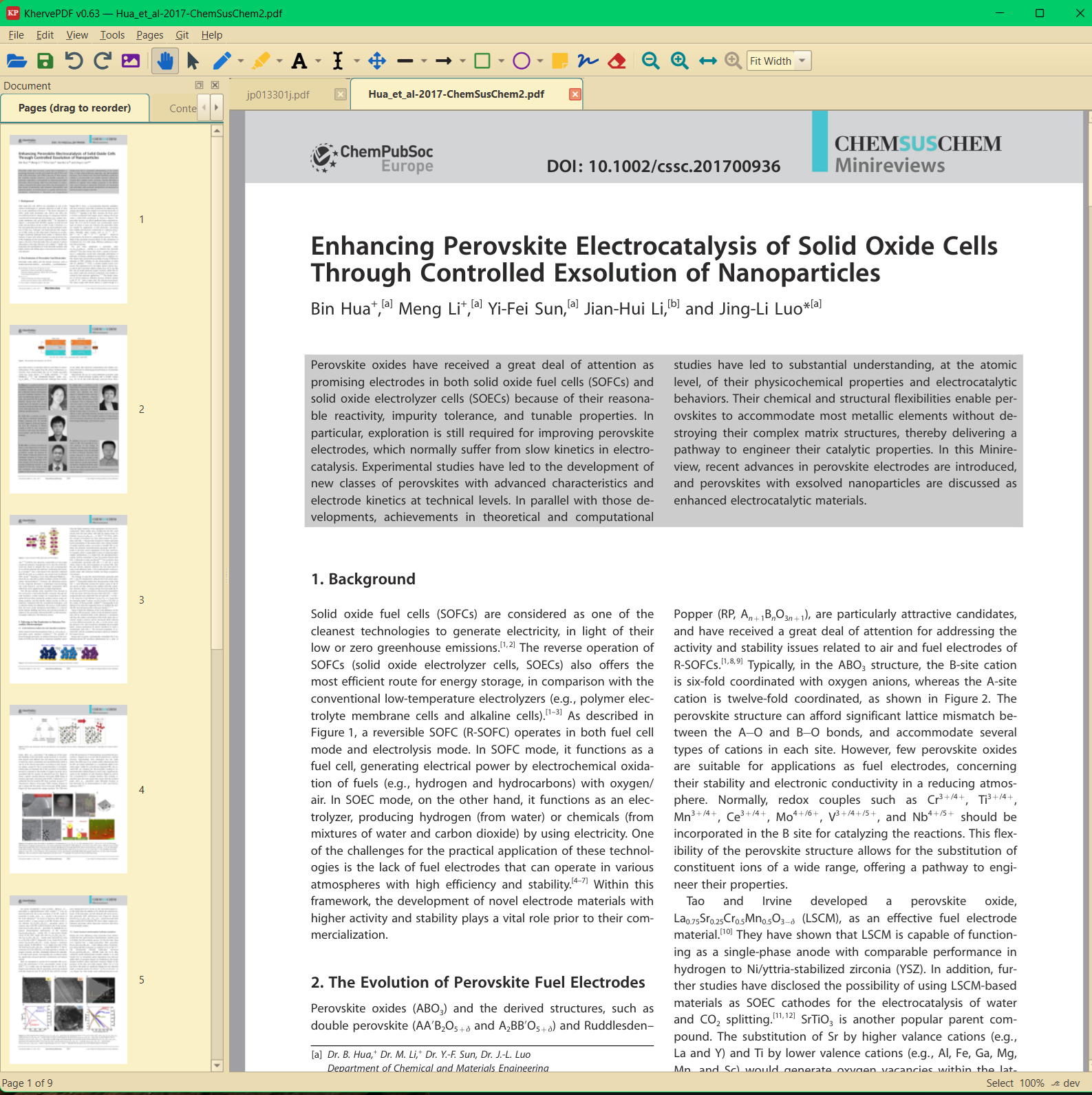
Attributes
- Tabbed PDF view — one document per tab
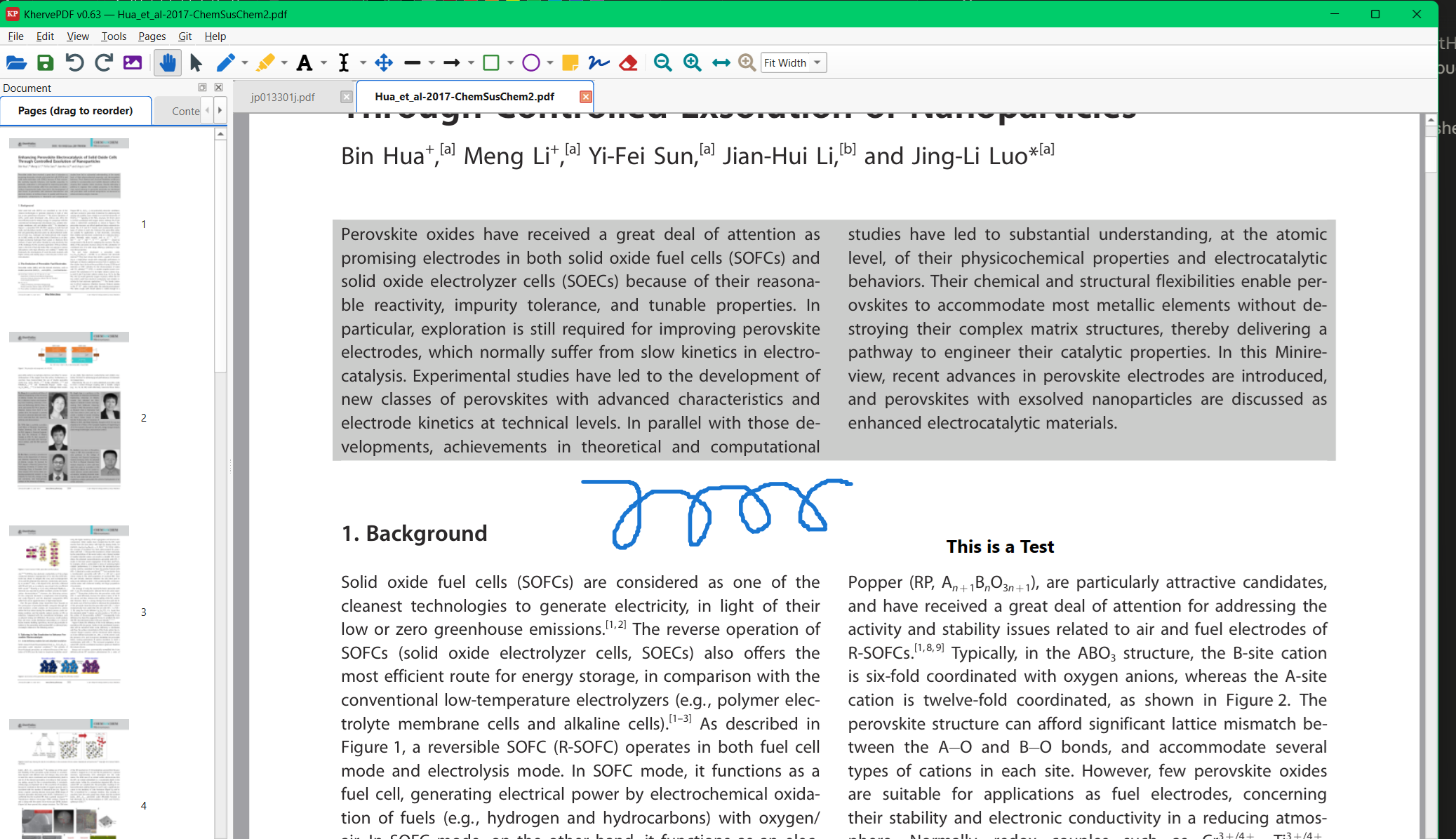
- Annotation tools: pen (multi-colour), highlight, text, line, arrow, rectangle, ellipse, sticky note, signature, redact
- Page operations: insert, delete, rotate, reorder, merge, split
- AcroForm form filling and text search across pages
- Digital signing (pyHanko)
- 13 themes shared with KherveTeX — Light, Dark, Nord, Dracula, Gruvbox, Monokai, One Dark, GitHub, Catppuccin, …
- Per-document Git repo: auto-commit on save, history browser, GitHub remote
How to install
KhervePDF is free and its source is public, but it is not signed with a paid Microsoft or Apple developer certificate. So the first time you open it, Windows and macOS say they cannot verify it and may even call it possible malware. That is the standard warning for every unsigned app, not a detection of anything. You approve it once, as shown below, and it then opens normally. Only this one app is allowed; nothing else on your computer is changed.
macOS (Apple Silicon and Intel)
1Open the .dmg and drag KhervePDF into Applications
Double-click the downloaded
.dmgfile (in your Downloads folder). In the window that opens, drag the KhervePDF icon onto the Applications folder. Then eject the disk image.2Open KhervePDF once — macOS blocks it. Click “Done”
Open your Applications folder and double-click KhervePDF. macOS shows “KhervePDF” Not Opened — Apple could not verify “KhervePDF” is free of malware…
Click Done. Do not click Move to Bin. This attempt is needed: it is what makes the Open Anyway button appear in the next step.
3Open System Settings → Privacy & Security
Click the Apple menu at the top-left of the screen, choose System Settings…, then click Privacy & Security in the left-hand list (scroll the list down if you don’t see it).
4Scroll down to “Security” and click “Open Anyway”
Scroll the right-hand side all the way down, past the Privacy items, to the Security heading. Under it you will see “KhervePDF” was blocked to protect your Mac. Click Open Anyway.
The button appears only for about an hour after step 2. If it is missing, repeat step 2 and come back.
5Confirm with “Open Anyway” and your password
macOS asks once more: click Open Anyway, then type your Mac login password (or use Touch ID) and confirm.
KhervePDF starts. From now on it opens normally with a double-click, and updates install without asking again.
macOS 14 Sonoma and older: instead of steps 3–5, right-click (or Control-click) KhervePDF in Applications, choose Open, then Open again.
Message says the app “is damaged and can’t be opened”? That is the same block. Open Terminal (Applications → Utilities), paste this line, press Return, and open the app again:
xattr -dr com.apple.quarantine "/Applications/KhervePDF.app"
Windows (64-bit)
1If your browser warns about the download, choose “Keep”
Chrome or Edge may say the setup file isn’t commonly downloaded. Open the downloads list, click ⋯ next to the file and choose Keep (in Edge: Keep → Show more → Keep anyway).
2Run the setup file — click “More info”
Double-click the downloaded setup file. Microsoft Defender SmartScreen shows a blue Windows protected your PC window. Click the small More info link.
3Click “Run anyway”, then follow the installer
A Run anyway button appears at the bottom. Click it, answer Yes if Windows asks to allow changes, then click Next through the installer and Finish. KhervePDF is in the Start menu and opens normally from then on.
Built with
A modern stack of well-known scientific Python libraries.
Documentation
Getting started
Install with pip install -r requirements.txt and run python KhervePDF.py, or use the Windows installer. Open a PDF and it appears in its own tab; all tools live in the toolbar above the page view.
Annotating
Pick a tool — pen, highlighter, text, arrow, shape, sticky note, signature or redaction — and draw directly on the page. Annotations are saved into the PDF itself, so they travel with the file to any other reader.
Page operations
Insert, delete, rotate and reorder pages from the page panel, and merge or split whole documents. Fillable forms (AcroForm) can be completed and saved in place.
Version history
Every document gets its own Git repository: each save is auto-committed, the history browser shows every prior version, and a GitHub remote can be attached for off-machine backup.
Versions
Disk image for Apple Silicon and Intel.
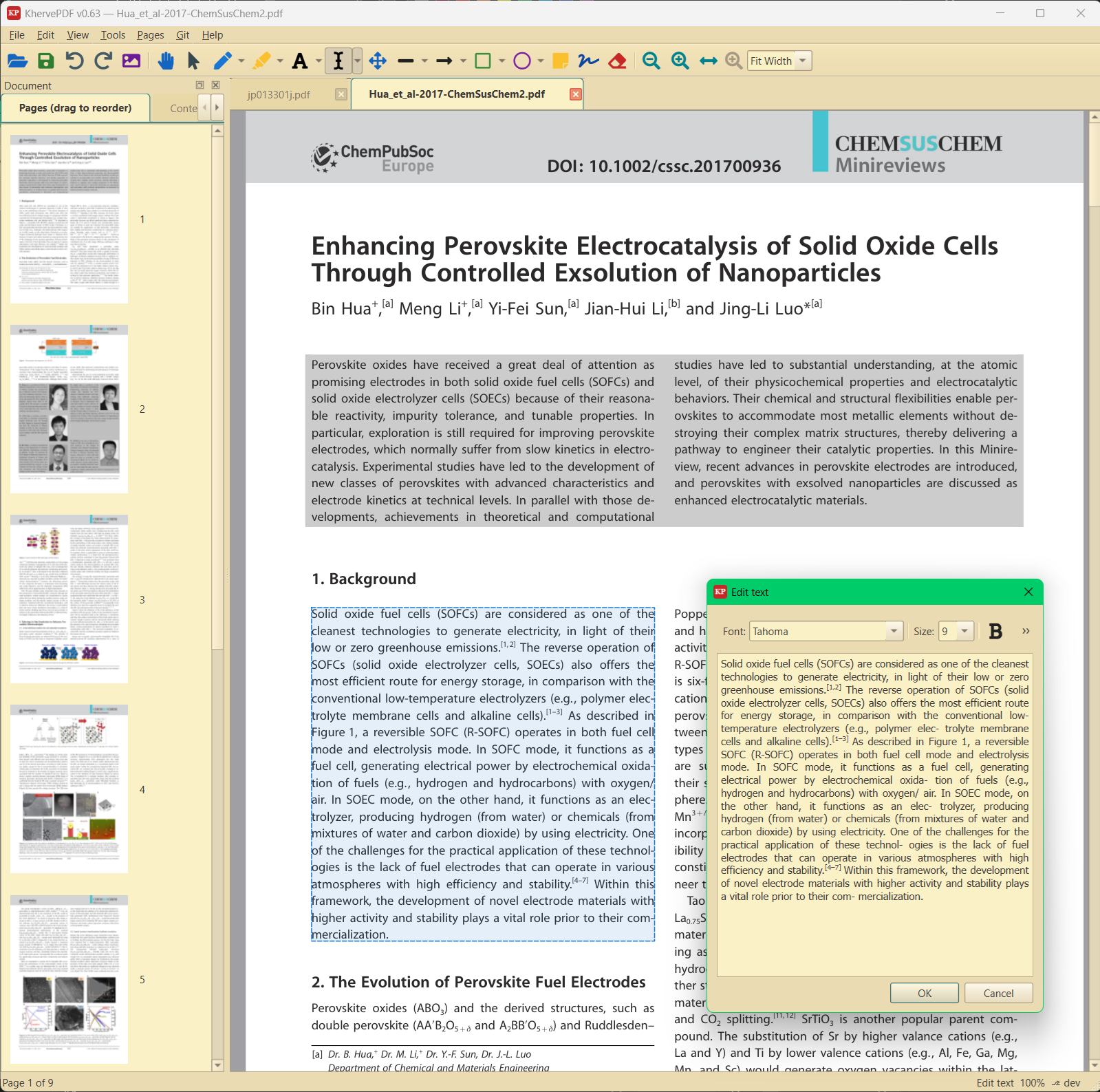
First Linux release: Debian / Ubuntu (amd64) and Raspberry Pi (arm64) packages, alongside Windows and macOS. Edit Text now guesses the paragraph's font, size, bold and italic, keeps its colour and background and inline styles, and reuses embedded fonts with bundled Computer Modern, Liberation, Carlito/Caladea and TeX Gyre for the rest. A splash screen at launch.
First macOS release (Apple Silicon and Intel). Night reading, read aloud with the sentence highlighted, slideshow, and reopening each file where you left it. Select text and edit words in place, fill forms, crop, stamp and number pages, OCR scanned pages, and compare two PDFs side by side. KherveRef links, AI questions about an area of the page, a task-grouped toolbar with hover help, and an update check that offers the right download for each system.
Hideable AI assistant sidebar grounded in the active document.
Part of the Kherve Tools family
Applications made by a scientist, for scientists.