KherveSlide
AvailableA WYSIWYG slide designer that produces Beamer LaTeX.
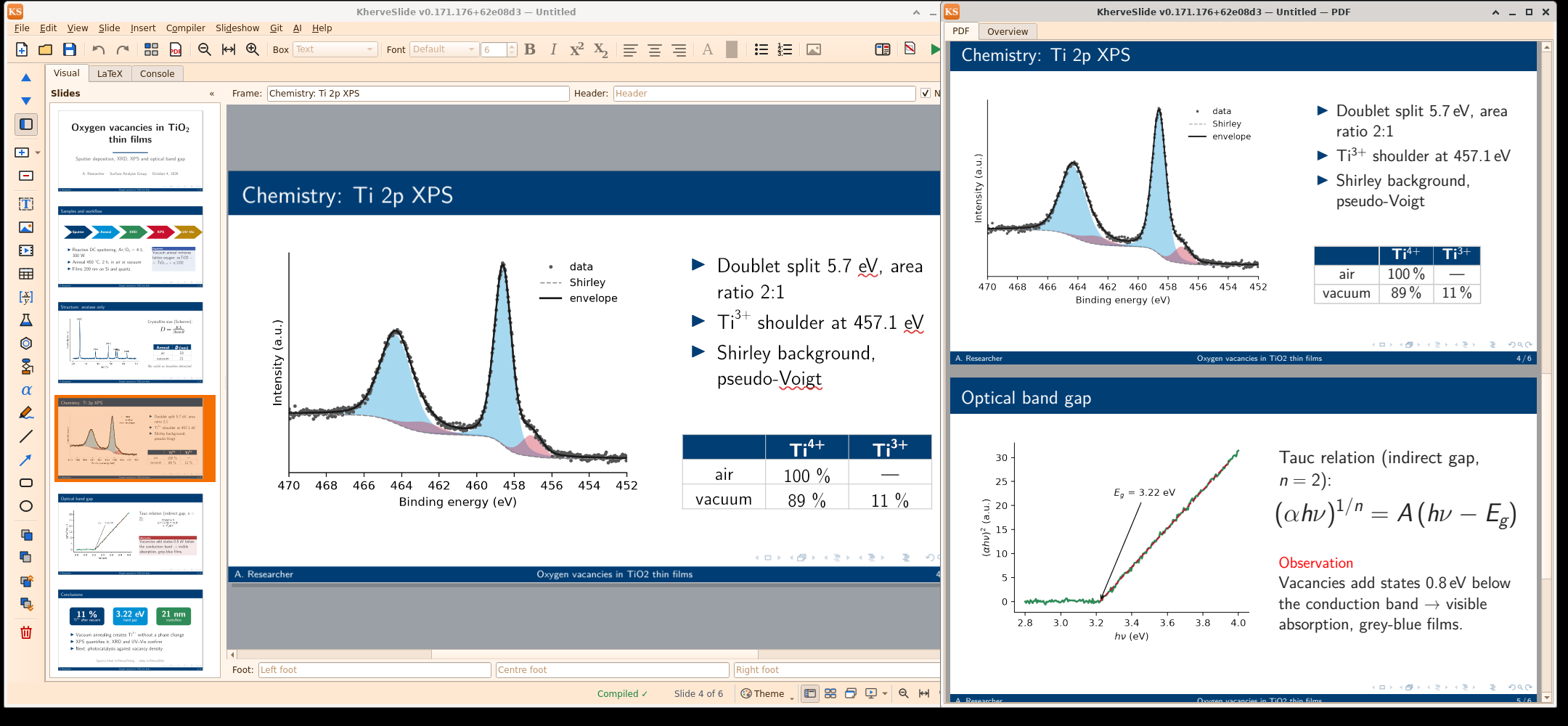
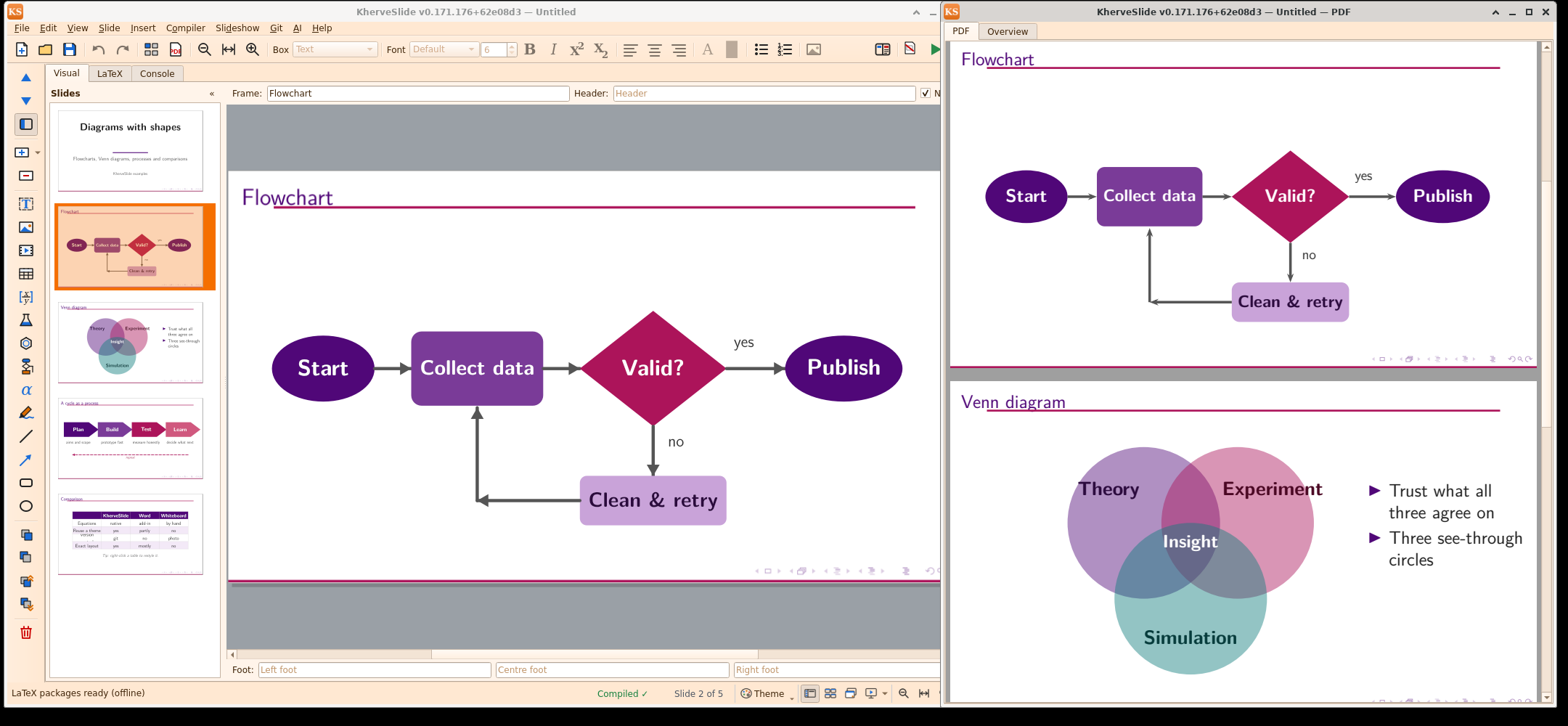
Drag, resize, and stack text and picture boxes exactly where you want them on the slide; KherveSlide keeps the generated Beamer LaTeX and compiled PDF preview live as you edit. LaTeX-quality presentations without writing LaTeX.
sudo apt install ./<file>.deb.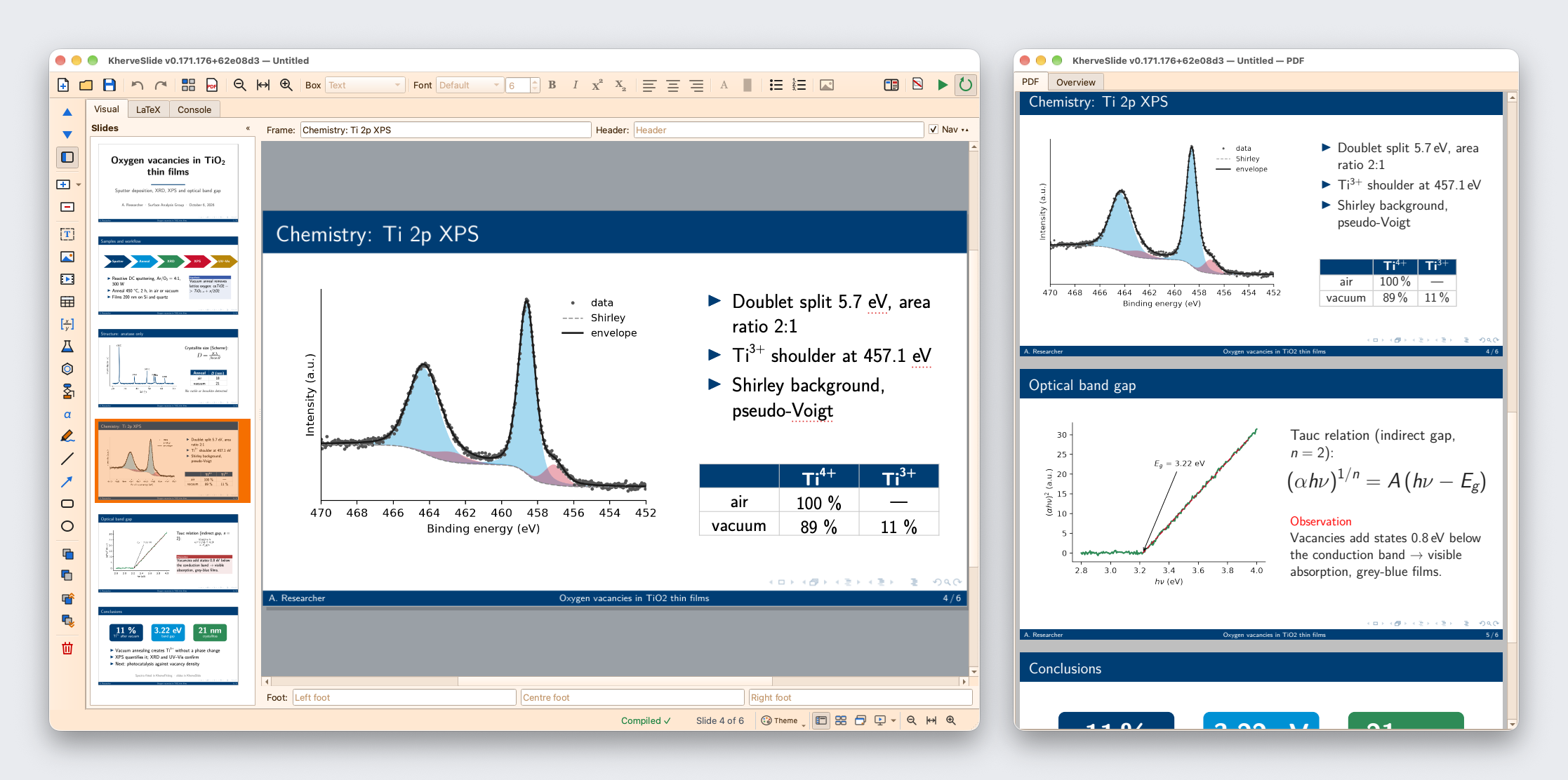
Attributes
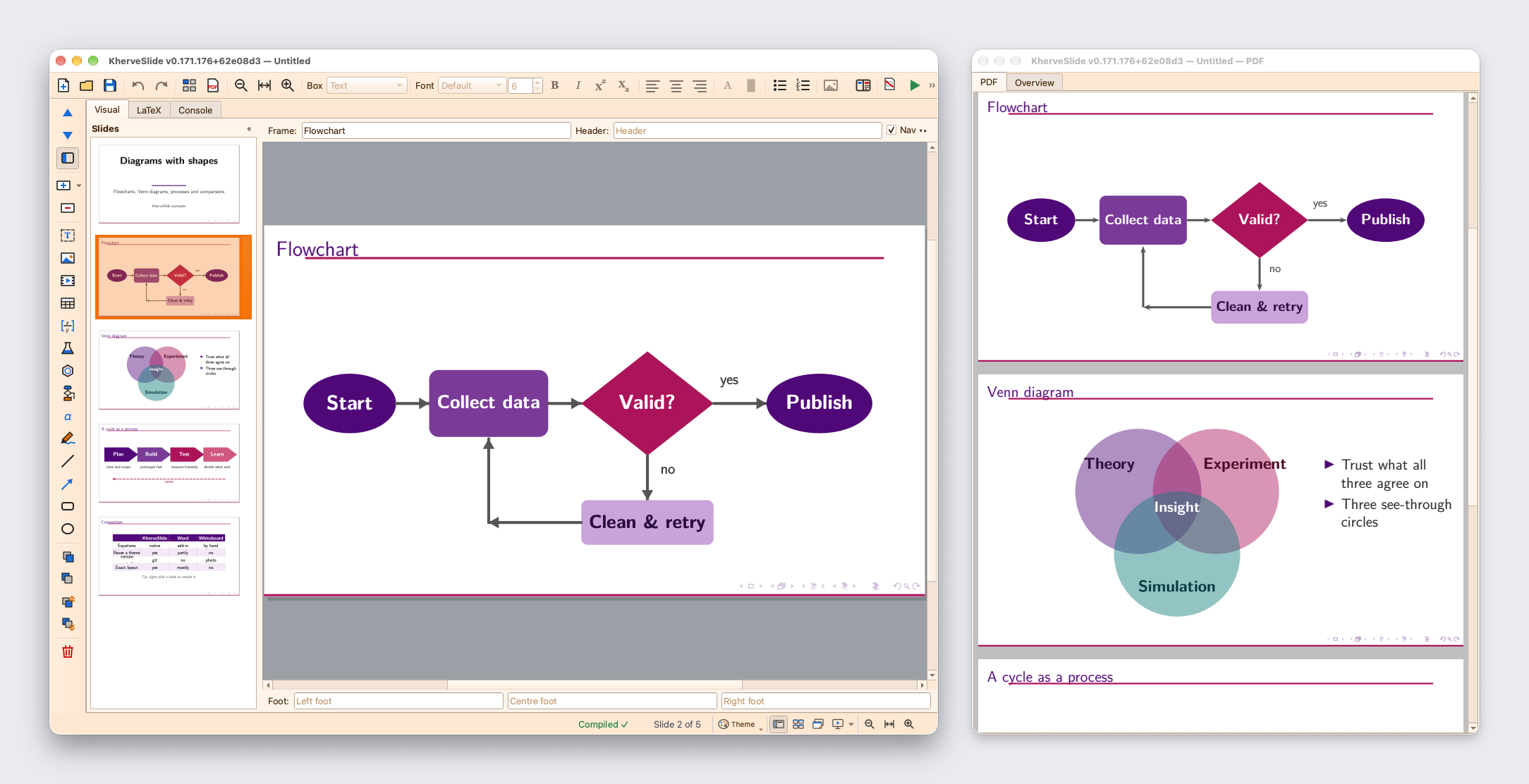
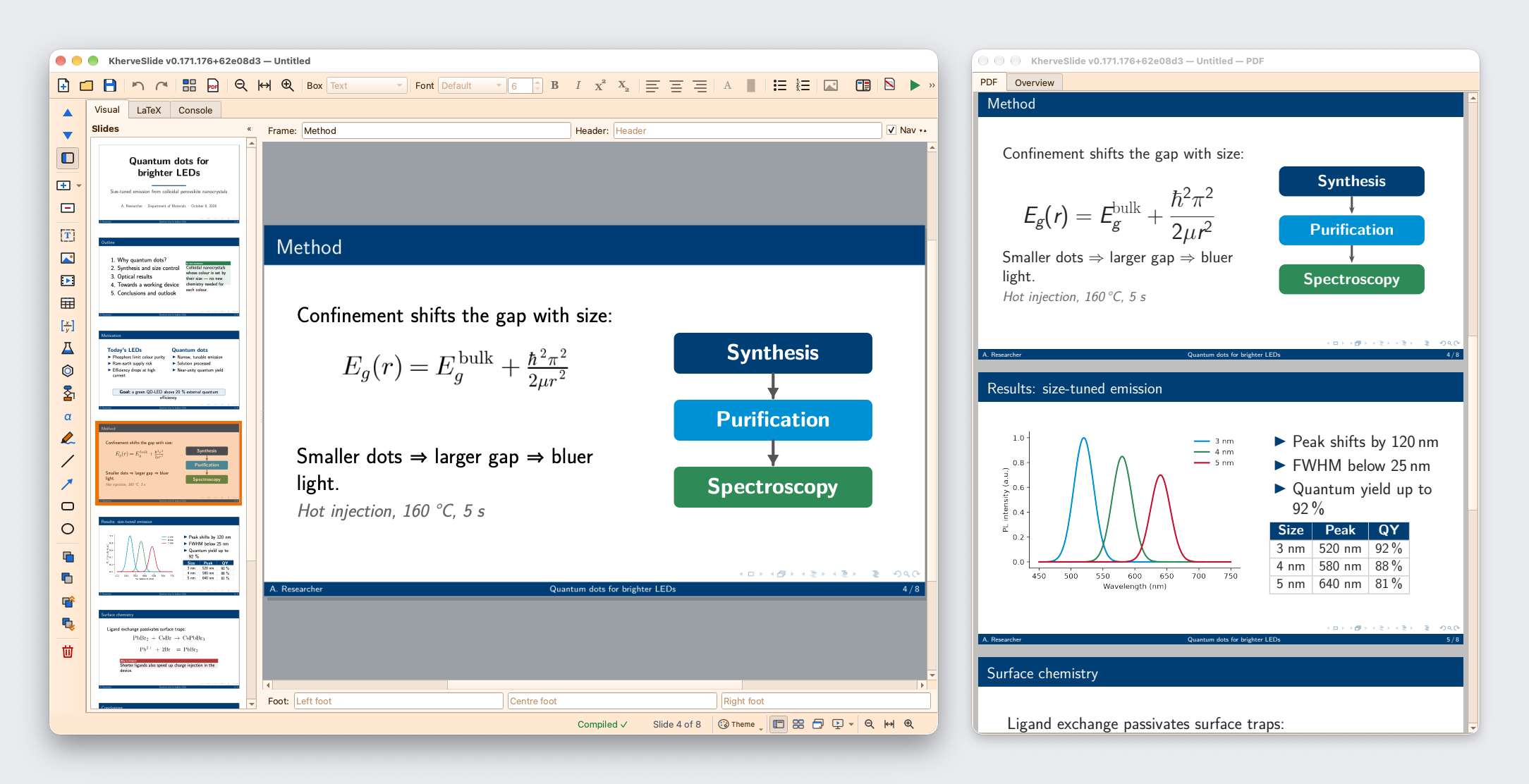
- WYSIWYG slide canvas — drag, resize and stack text and picture boxes freely
- Visual slide navigator with drag-to-reorder
- Live generated Beamer LaTeX and compiler console beside the canvas
- Compile to PDF with the bundled tectonic engine — the LaTeX packages ship with the installer, so it works offline from the first launch
- Compiler menu: engine status, package cache, offline ready, and Download offline bundle
- PowerPoint (.pptx) import and export, printing and handouts
- Controllable by AI over MCP — Claude can build and edit the presentation in the open window, compile it and check the slides
- Slideshow with a presenter view (current + next slide, timer)
- Example presentations and templates to start from
- Shares KherveTeX's themes and runtime-drawn icons
AI built in
Control KherveSlide from Claude Desktop, Claude Code or Cursor over MCP (AI ▸ Connect to Claude): the assistant drives the open window — reads the presentation and its LaTeX, adds and rearranges slides, writes text, equations, pictures, shapes and tables, applies themes, compiles and looks at the rendered slides to check its work, then saves or exports the PDF. Local-only, off until you enable it, with read-only or full access.
How to install
KherveSlide is free and its source is public, but it is not signed with a paid Microsoft or Apple developer certificate. So the first time you open it, Windows and macOS say they cannot verify it and may even call it possible malware. That is the standard warning for every unsigned app, not a detection of anything. You approve it once, as shown below, and it then opens normally. Only this one app is allowed; nothing else on your computer is changed.
macOS (Apple Silicon and Intel)
1Open the .dmg and drag KherveSlide into Applications
Double-click the downloaded
.dmgfile (in your Downloads folder). In the window that opens, drag the KherveSlide icon onto the Applications folder. Then eject the disk image.2Open KherveSlide once — macOS blocks it. Click “Done”
Open your Applications folder and double-click KherveSlide. macOS shows “KherveSlide” Not Opened — Apple could not verify “KherveSlide” is free of malware…
Click Done. Do not click Move to Bin. This attempt is needed: it is what makes the Open Anyway button appear in the next step.
3Open System Settings → Privacy & Security
Click the Apple menu at the top-left of the screen, choose System Settings…, then click Privacy & Security in the left-hand list (scroll the list down if you don’t see it).
4Scroll down to “Security” and click “Open Anyway”
Scroll the right-hand side all the way down, past the Privacy items, to the Security heading. Under it you will see “KherveSlide” was blocked to protect your Mac. Click Open Anyway.
The button appears only for about an hour after step 2. If it is missing, repeat step 2 and come back.
5Confirm with “Open Anyway” and your password
macOS asks once more: click Open Anyway, then type your Mac login password (or use Touch ID) and confirm.
KherveSlide starts. From now on it opens normally with a double-click, and updates install without asking again.
macOS 14 Sonoma and older: instead of steps 3–5, right-click (or Control-click) KherveSlide in Applications, choose Open, then Open again.
Message says the app “is damaged and can’t be opened”? That is the same block. Open Terminal (Applications → Utilities), paste this line, press Return, and open the app again:
xattr -dr com.apple.quarantine "/Applications/KherveSlide.app"
Windows (64-bit)
1If your browser warns about the download, choose “Keep”
Chrome or Edge may say the setup file isn’t commonly downloaded. Open the downloads list, click ⋯ next to the file and choose Keep (in Edge: Keep → Show more → Keep anyway).
2Run the setup file — click “More info”
Double-click the downloaded setup file. Microsoft Defender SmartScreen shows a blue Windows protected your PC window. Click the small More info link.
3Click “Run anyway”, then follow the installer
A Run anyway button appears at the bottom. Click it, answer Yes if Windows asks to allow changes, then click Next through the installer and Finish. KherveSlide is in the Start menu and opens normally from then on.
Built with
A modern stack of well-known scientific Python libraries.
Documentation
Getting started
Download the installer for Windows, the disk image for macOS, or the .deb for Linux or Raspberry Pi (sudo apt install ./KherveSlide_<version>_<arch>.deb, then run kherveslide or use the menu entry) and start KherveSlide; the Windows portable zip runs without installing. tectonic and the LaTeX packages KherveSlide uses are bundled, so there is no LaTeX to install and slides compile offline from the first launch; Compiler ▸ Compiler status shows the engine and package cache. On macOS the app is not notarised: the first time, right-click it in Applications and choose Open. Start from a template or an example presentation on the Welcome page, double-click a box to type into it, and the PDF beside the canvas follows your edits.
Versions
Disk image for Apple Silicon and Intel.
Linux packages: Debian / Ubuntu (amd64) and Raspberry Pi (arm64), with the tectonic engine and LaTeX packages included. The PDF opens in its own window for existing installs too. Slides compile on a new computer: the installer includes every LaTeX package KherveSlide uses, so the first compile works at once, even offline (0.168.170 shipped the engine without its packages). New Compiler menu with the compiler status and Download offline bundle. First public release: a Visual slide canvas — drag, resize and stack text and picture boxes — with a drag-to-reorder navigator, the generated Beamer LaTeX and compiler console, and the compiled PDF live in its own window beside it (or side by side, or hidden). The tectonic engine is bundled, so no LaTeX install is needed (the first compile downloads the packages it uses). Themes with a preview gallery, templates and example presentations; equations, chemistry, drawings and flowcharts; PowerPoint import and export, printing and handouts; a slideshow with presenter view. Windows installer and portable zip, and macOS disk images for Apple Silicon and Intel.
Part of the Kherve Tools family
Applications made by a scientist, for scientists.