
KherveNote
AvailableTake notes while someone speaks — the talk is transcribed on your computer, and Claude helps turn it into a LaTeX / PDF note.
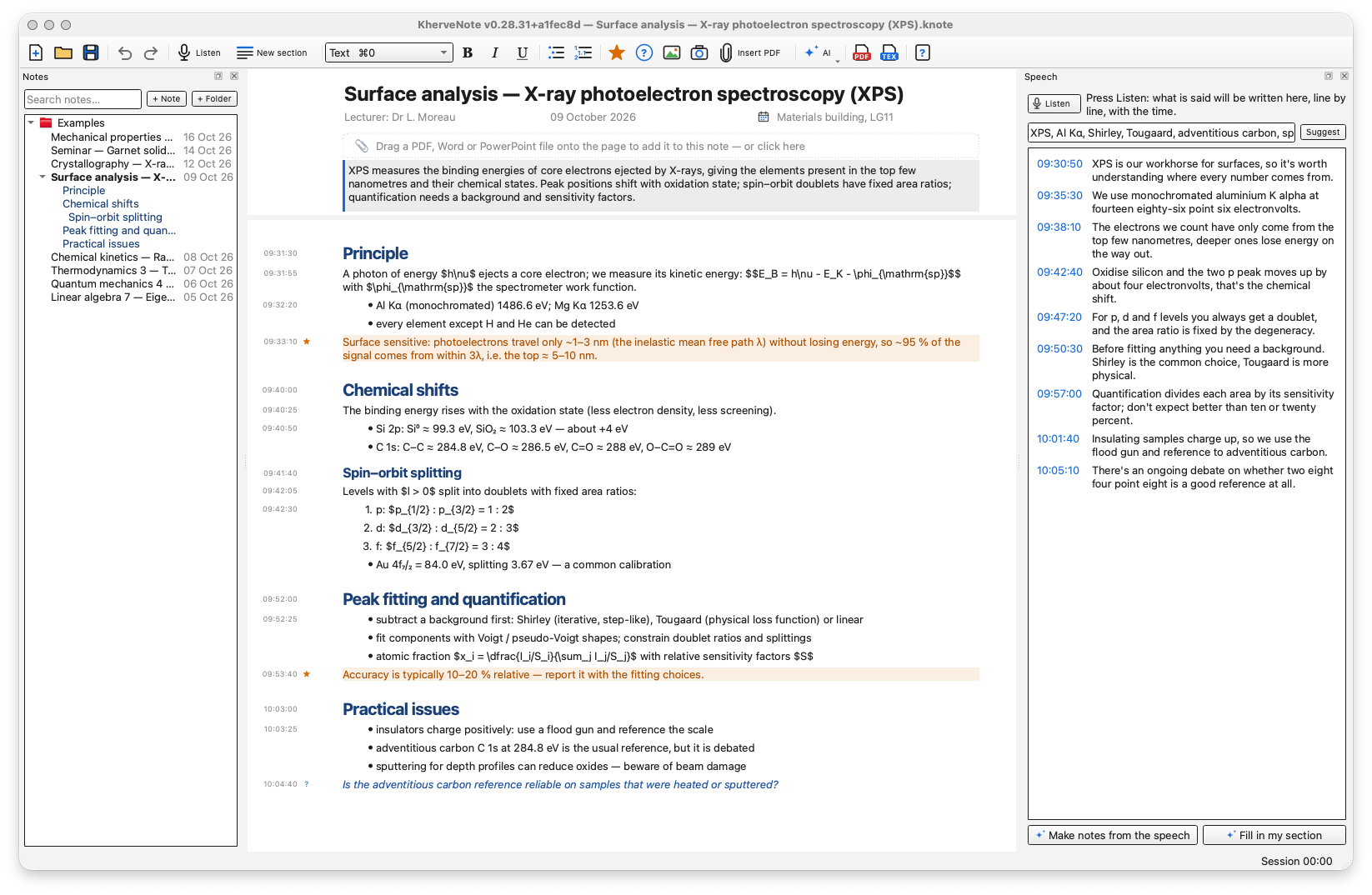
Live notes for lectures, trainings, meetings and talks. You write on one endless page while KherveNote listens: Whisper, running offline on your own computer, writes what is said in a Speech panel beside your notes, line by line with the time of day, and the audio never leaves the machine. Your paragraphs carry the time they were written, so notes and speech stay linked. Mark sections as the talk moves on, add key points, questions, equations, camera pictures and attached PDF, Word or PowerPoint documents (PDFs open in KhervePDF, which comes with it). Then let Claude — over MCP, from Claude Desktop, Claude Code or Cursor — or a local AI (Ollama) read the speech and fill in each section with what your notes missed, or make notes from the whole talk. Export a clean LaTeX note and a continuous PDF — one page as long as the note, with a bookmark per section — or A4 pages for printing.
Attributes
- Listen (Ctrl+L) — what is said is written in the Speech panel beside your notes, line by line with the time of day, the words appearing live as they are spoken
- Offline speech-to-text — Whisper (faster-whisper) runs on your computer; the audio never leaves it. The model downloads once, then works without internet; choose Tiny to Large and the language
- Notes and speech linked by time — each paragraph is stamped when you start typing it; click it to highlight what was said just before, click a time in the speech to jump to what you were writing
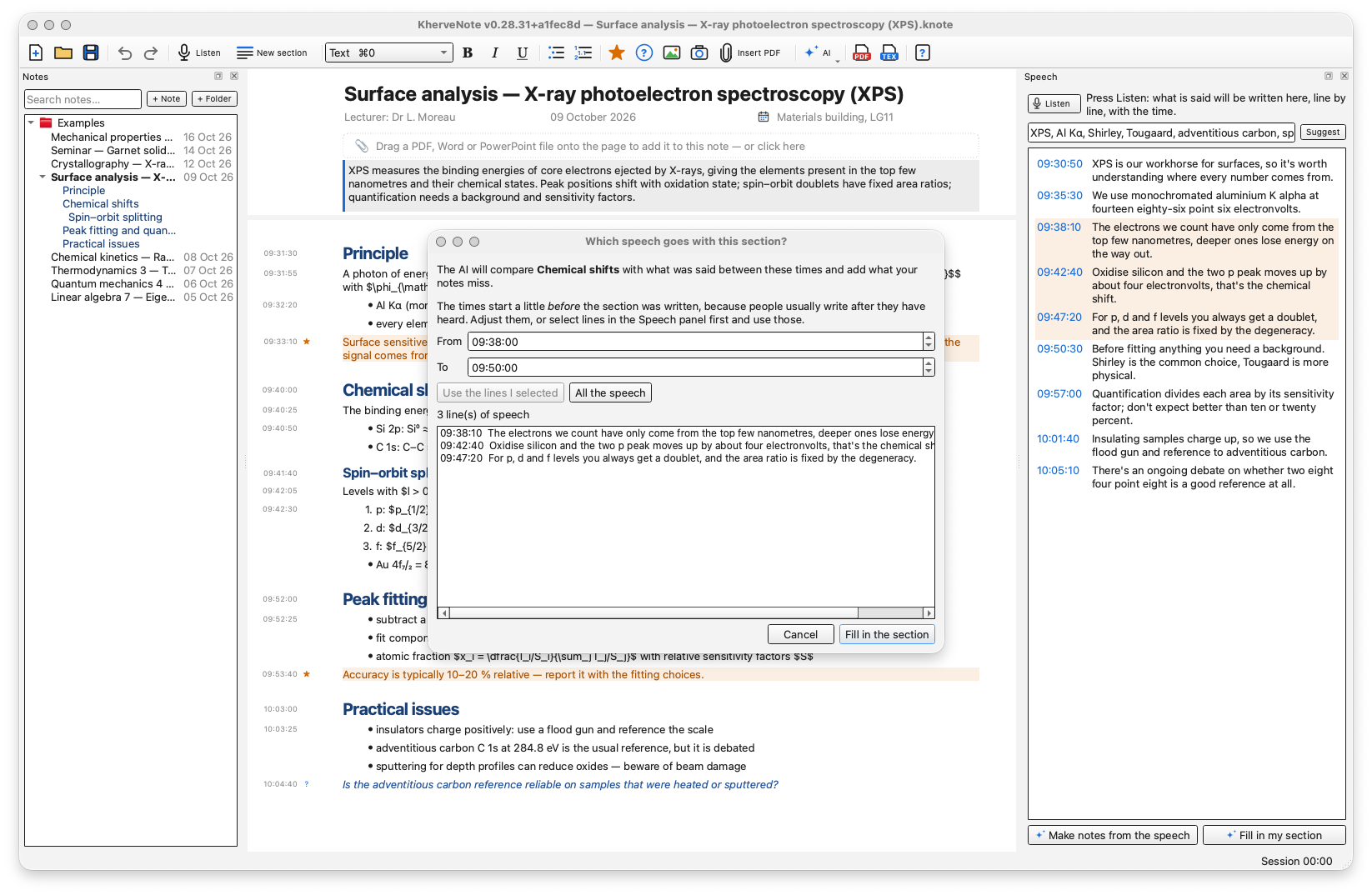
- Sections as the talk moves on — Ctrl+Return starts one; each knows when it began, so the speech that goes with it (from a little before you wrote the heading) is found by itself
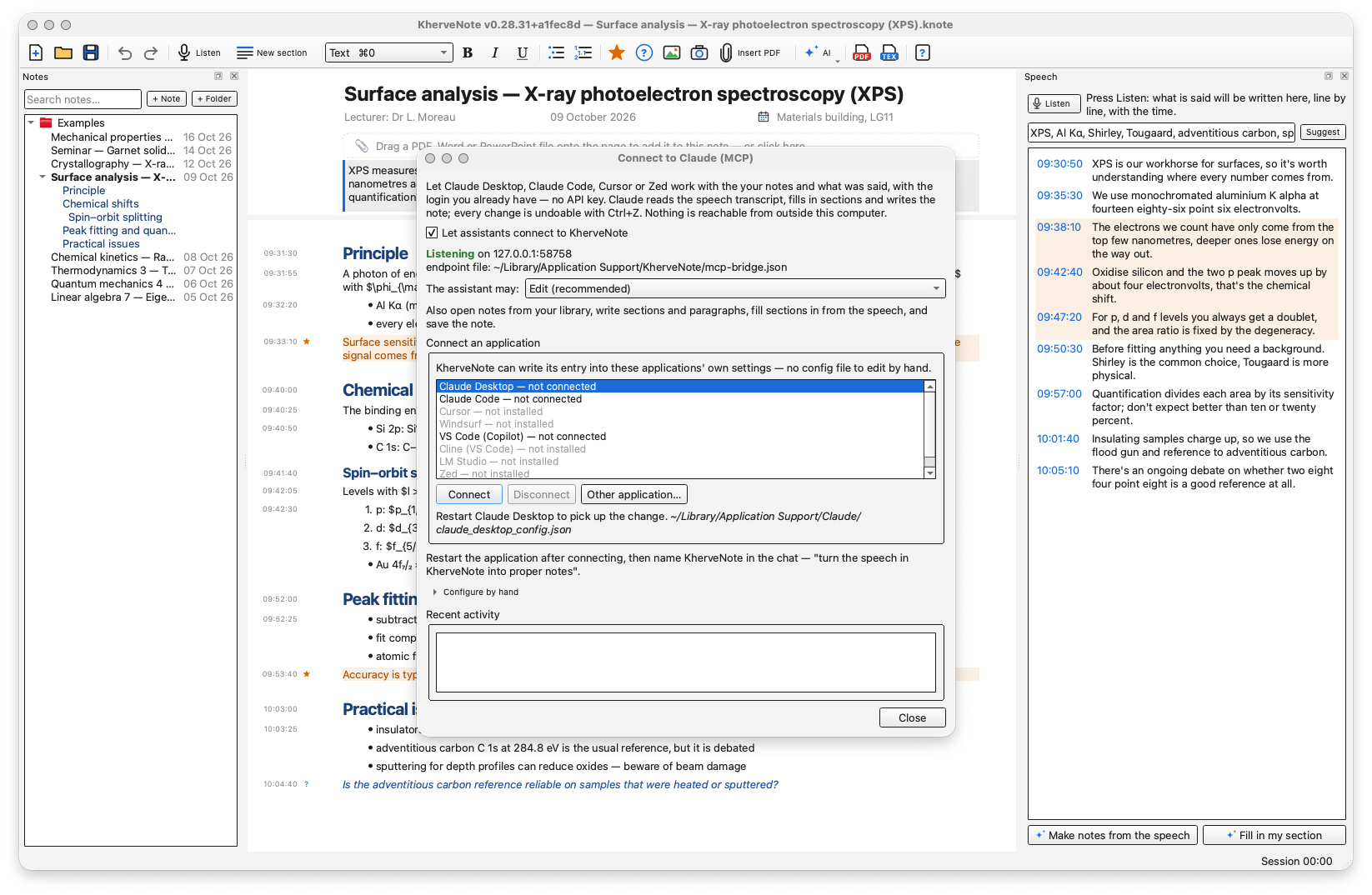
- Claude over MCP — connect Claude Desktop, Claude Code or Cursor from AI ▸ Connect to Claude: it reads the note and the transcript, fills in each section with what was said and your notes missed, adds a 'Notes from the speech' section, rewrites paragraphs and exports LaTeX / PDF
- Local AI with Ollama — the same jobs on your own computer with no cloud key: fill in a section (you pick the From / To times), make notes from the speech, rephrase, summarise
- One endless page — subsections, key points, questions, bullet and numbered lists, bold / italic / underline, and equations written as LaTeX ($…$, $$…$$)
- Words in this talk — names and field terms you list (or Suggest from the note) so recognition spells them right; correct, delete or replay any line of the speech
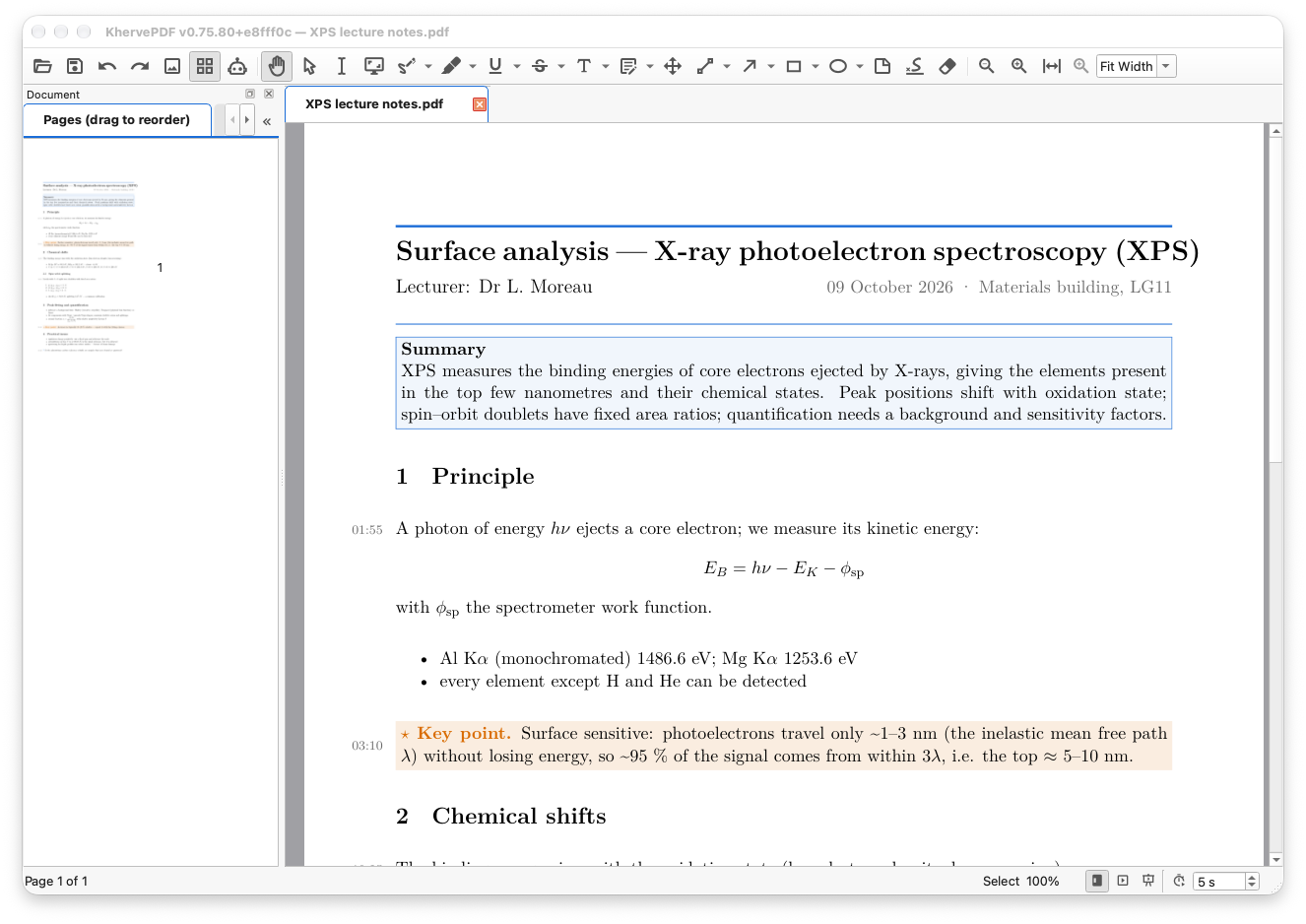
- Documents and pictures — drop a PDF, Word or PowerPoint file onto the page, ask it questions or summarise it section by section; PDFs open in KhervePDF (included), and annotations saved there stay in the note; take a picture of the whiteboard with the camera
- Export LaTeX and PDF — a continuous PDF (one page as long as the note, a bookmark per section) or A4 pages; optional times in the margin and the transcript at the end. tectonic and the TeX files are built in, so it works offline
- Notes are safe — a library of folders in Documents ▸ KherveNote with full-text search, autosave, earlier versions of every note, and recordings that survive a crash mid-talk
- Eight example notes for scientists — maths, physics, chemistry and materials science lectures with equations and the speech beside them (Help ▸ Example notes)
AI built in
Claude over MCP: AI ▸ Connect to Claude lets Claude Desktop, Claude Code or Cursor work on the open note with the login you already have — no API key. It reads the note and the speech transcript (all of it, or the part that goes with one section), lists and opens your notes, fills in a section from what was said under 'From the speech (times)', adds sections, rewrites paragraphs, sets the title and summary, saves, and exports LaTeX or PDF. Local-only and off until you enable it, with Read only / Edit / Full access levels and a log of every call; each change is one Ctrl+Z. A local AI through Ollama does the same filling-in, notes from the speech, rephrasing and summaries entirely on your computer. Speech recognition is Whisper, always offline.
How to install
KherveNote is free and its source is public, but it is not signed with a paid Microsoft or Apple developer certificate. So the first time you open it, Windows and macOS say they cannot verify it and may even call it possible malware. That is the standard warning for every unsigned app, not a detection of anything. You approve it once, as shown below, and it then opens normally. Only this one app is allowed; nothing else on your computer is changed.
macOS (Apple Silicon and Intel)
1Open the .dmg and drag KherveNote into Applications
Double-click the downloaded
.dmgfile (in your Downloads folder). In the window that opens, drag the KherveNote icon onto the Applications folder. Then eject the disk image.2Open KherveNote once — macOS blocks it. Click “Done”
Open your Applications folder and double-click KherveNote. macOS shows “KherveNote” Not Opened — Apple could not verify “KherveNote” is free of malware…
Click Done. Do not click Move to Bin. This attempt is needed: it is what makes the Open Anyway button appear in the next step.
3Open System Settings → Privacy & Security
Click the Apple menu at the top-left of the screen, choose System Settings…, then click Privacy & Security in the left-hand list (scroll the list down if you don’t see it).
4Scroll down to “Security” and click “Open Anyway”
Scroll the right-hand side all the way down, past the Privacy items, to the Security heading. Under it you will see “KherveNote” was blocked to protect your Mac. Click Open Anyway.
The button appears only for about an hour after step 2. If it is missing, repeat step 2 and come back.
5Confirm with “Open Anyway” and your password
macOS asks once more: click Open Anyway, then type your Mac login password (or use Touch ID) and confirm.
KherveNote starts. From now on it opens normally with a double-click, and updates install without asking again.
macOS 14 Sonoma and older: instead of steps 3–5, right-click (or Control-click) KherveNote in Applications, choose Open, then Open again.
Message says the app “is damaged and can’t be opened”? That is the same block. Open Terminal (Applications → Utilities), paste this line, press Return, and open the app again:
xattr -dr com.apple.quarantine "/Applications/KherveNote.app"
Windows (64-bit)
1If your browser warns about the download, choose “Keep”
Chrome or Edge may say the setup file isn’t commonly downloaded. Open the downloads list, click ⋯ next to the file and choose Keep (in Edge: Keep → Show more → Keep anyway).
2Run the setup file — click “More info”
Double-click the downloaded setup file. Microsoft Defender SmartScreen shows a blue Windows protected your PC window. Click the small More info link.
3Click “Run anyway”, then follow the installer
A Run anyway button appears at the bottom. Click it, answer Yes if Windows asks to allow changes, then click Next through the installer and Finish. KherveNote is in the Start menu and opens normally from then on.
Built with
A modern stack of well-known scientific Python libraries.
Documentation
Getting started
Download the installer for Windows or the disk image for macOS from this page and start KherveNote; the portable zip runs without installing. Your notes live in Documents ▸ KherveNote. Type a title, then write straight onto the page — each paragraph shows the time it was written. Ctrl+Return starts a new section. Help ▸ Example notes adds eight worked lectures to try every feature on, and Help ▸ User manual (F1) explains everything.
Listening and the transcript
Press Listen (Ctrl+L). What is said appears in the Speech panel beside your notes, line by line with the time of day; the recording is kept inside the note. Recognition is Whisper running on this computer: the first time, the speech model downloads once (Small, the default, is about 480 MB — the recording runs meanwhile), then it works offline. Choose the model, the language and the microphone in the Speech menu, and list the talk's names and terms under Words in this talk.
Connect to Claude
AI ▸ Connect to Claude (MCP): tick 'Let assistants connect to KherveNote', pick Claude Desktop, Claude Code or Cursor and press Connect — KherveNote writes its entry into that application's settings. Restart it, then ask, for example, 'fill in every section of my KherveNote note from the speech' or 'turn the speech into proper notes'. Claude reads the note and the transcript, writes under 'From the speech (times)' in each section and can export the PDF. The bridge only listens on this computer; Edit (the default) lets it write in the note, Full also lets it export to files of its own choosing. What Claude reads of the note is sent to Claude; the speech recognition itself stays offline.
Sections and the local AI
Sections are headings on the page and are listed under the note in the Notes panel. Fill in my section asks which part of the speech goes with the section — starting a little before you wrote its heading, because people write after they hear — and the local AI adds what your notes missed. The local AI is Ollama on your own computer: AI ▸ Set up the local AI links to it and installs a model in one click.
Exporting to LaTeX and PDF
Export PDF (Ctrl+E) typesets the note with LaTeX: by default one continuous page as long as the note, with a bookmark per section, or A4 pages for printing. Times in the margin and the transcript at the end are options of the Export menu. Export LaTeX writes the .tex file and its pictures, to edit further in KherveTeX. The installed app carries its own LaTeX engine (tectonic) and the TeX files the note needs, so the first export works offline.
Attached PDFs and KhervePDF
Drop a PDF, Word or PowerPoint file onto the page and it sits in the note as an icon. Click a PDF to open it in KhervePDF, which the installer includes (a KhervePDF you installed yourself is used first); annotations you save there stay in the note. Right-click a document for its sections, a search, a summary or a question to the local AI.
On macOS
The disk image is ad-hoc signed but not notarised, so the first time you open KherveNote on a Mac, right-click it in Applications and choose Open. macOS then asks once for the microphone (to listen) and the camera (to take a picture). On Windows the installer is unsigned: choose More info, then Run anyway.
Versions
Disk image for Apple Silicon and Intel.
First public release. Write on one endless page while Whisper transcribes the talk offline into a Speech panel, line by line with the time of day; notes and speech linked by time. Sections, key points, questions, lists, equations, camera pictures and attached PDF / Word / PowerPoint documents, with KhervePDF included to open the PDFs. Claude over MCP (Claude Desktop, Claude Code, Cursor): it reads the note and the speech, fills in sections from what was said, adds sections and exports — local-only, off until you enable it. Local AI (Ollama) for the same jobs on your own computer. Export LaTeX, a continuous PDF or A4 pages — tectonic and the TeX files are built in, so PDF export works offline. Notes save themselves, keep earlier versions and survive a crash mid-talk. Windows installer and portable zip, and macOS disk images for Apple Silicon and Intel.
Part of the Kherve Tools family
Applications made by a scientist, for scientists.