
Publish or Perish
AvailableA university department that lives by itself — and you are its newest PhD student.
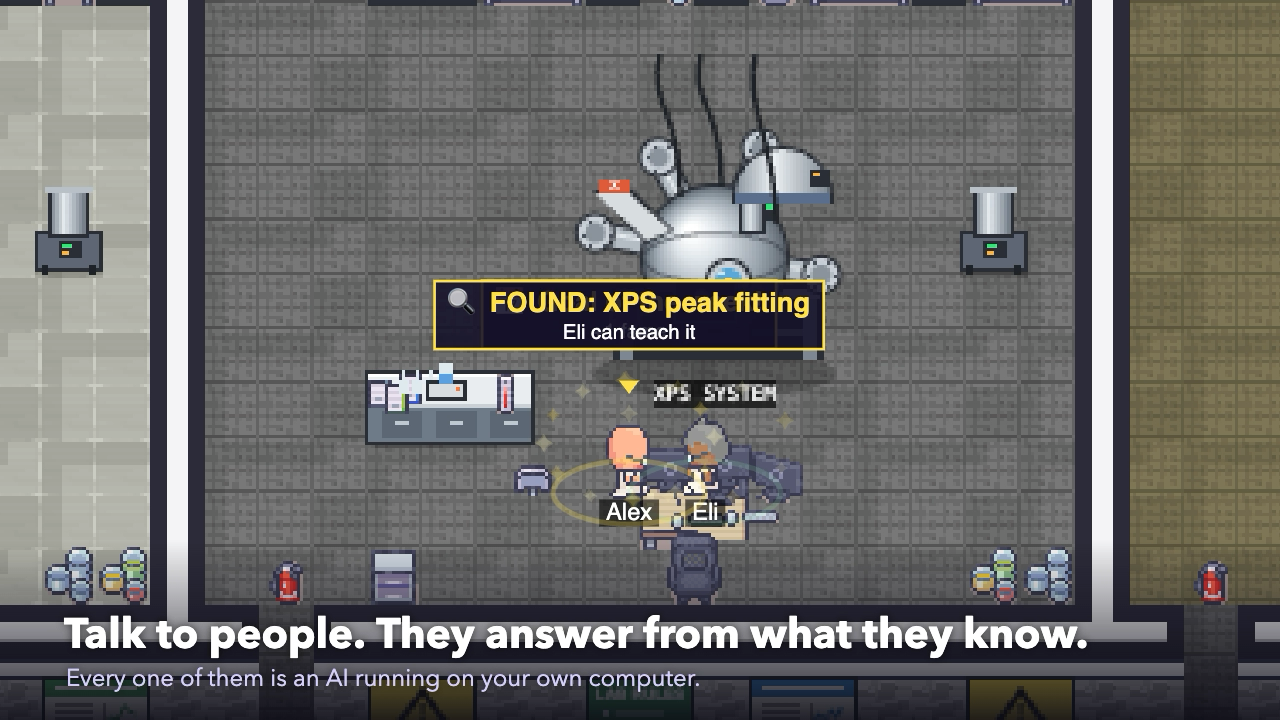
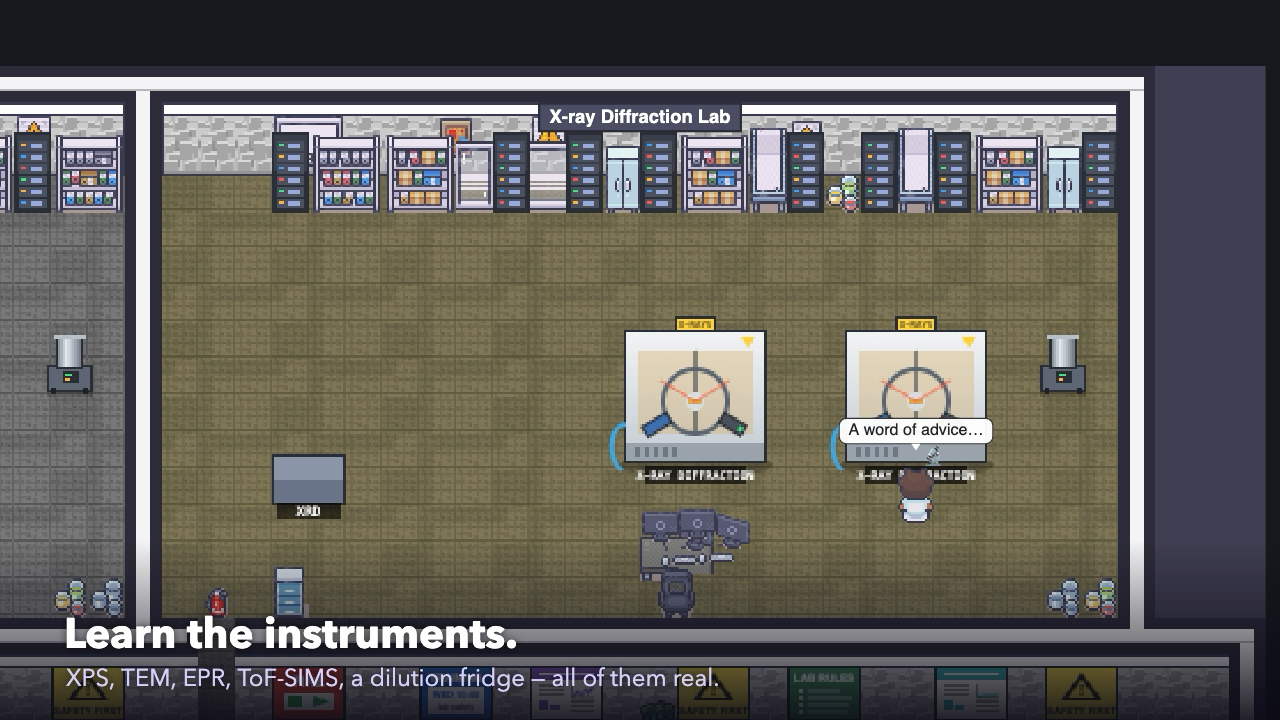
A life simulation of a science department. Over a hundred scientists, technicians and staff work in a six-floor building with real instruments — XPS, TEM, STEM, XRD, ToF-SIMS, EPR, NMR, a dilution fridge — and each of them has a mind of their own: what they know, what they believe, who they trust, who they envy. They run experiments, write papers, chase grants, gossip in the canteen, fall out and fall in love. You arrive as a first-year PhD student with a topic and three papers to write. Talk to people and they answer from what they actually know; find out who can teach you each skill, get trained on the instruments, present at the Wednesday seminar, pass your viva — then postdoc, lecturer, reader. Every person in the building is an AI running on your own computer: the game carries its own local AI engine and model, nothing goes to the cloud.
Watch Publish or Perish
Trailer — one day, then three years
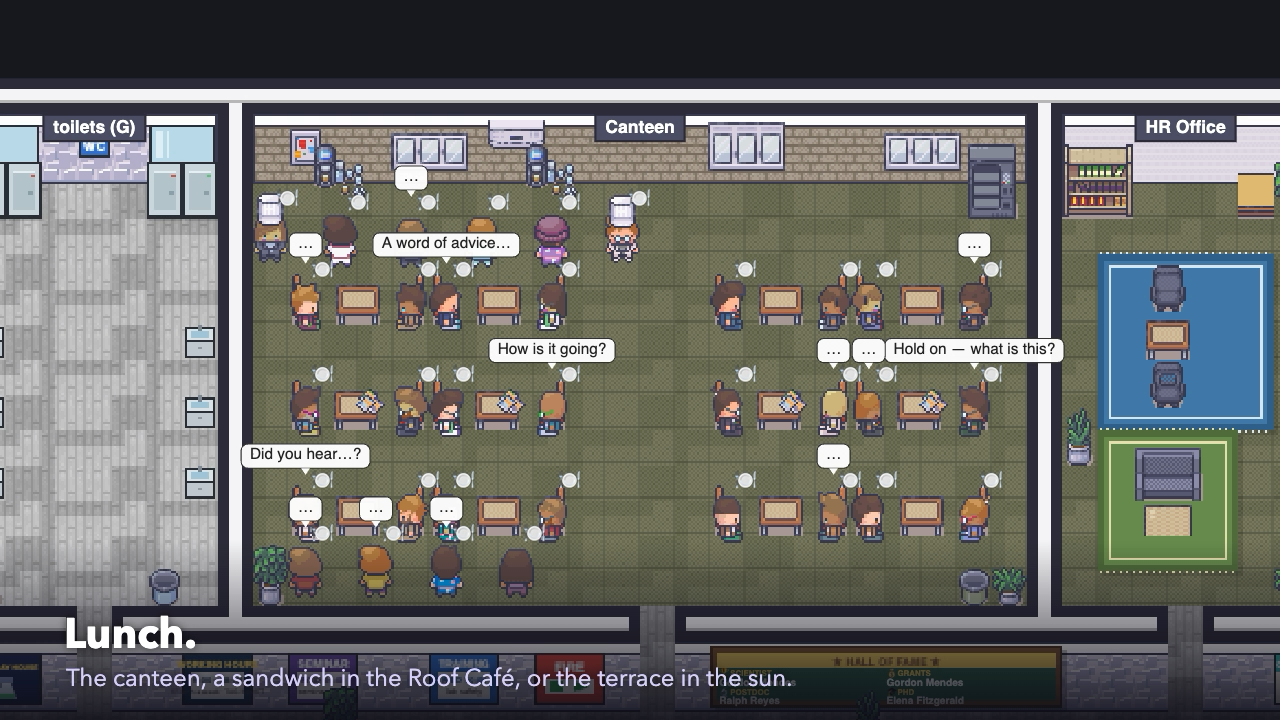
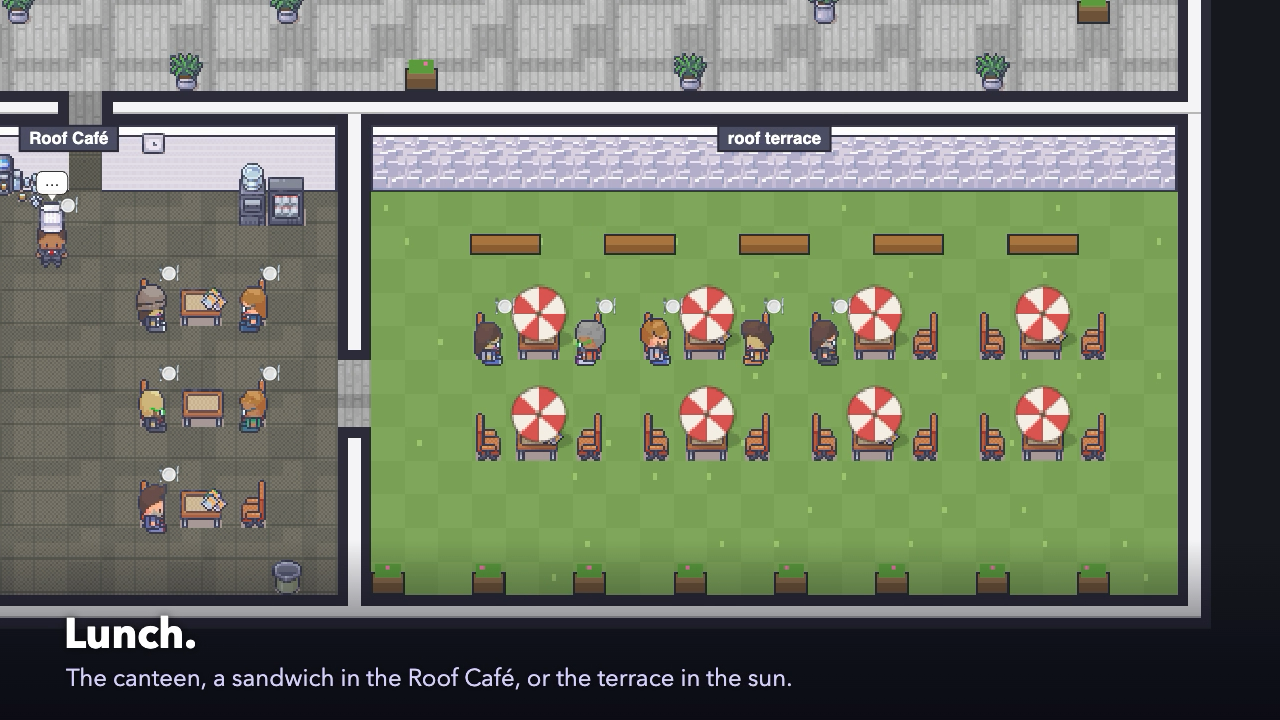
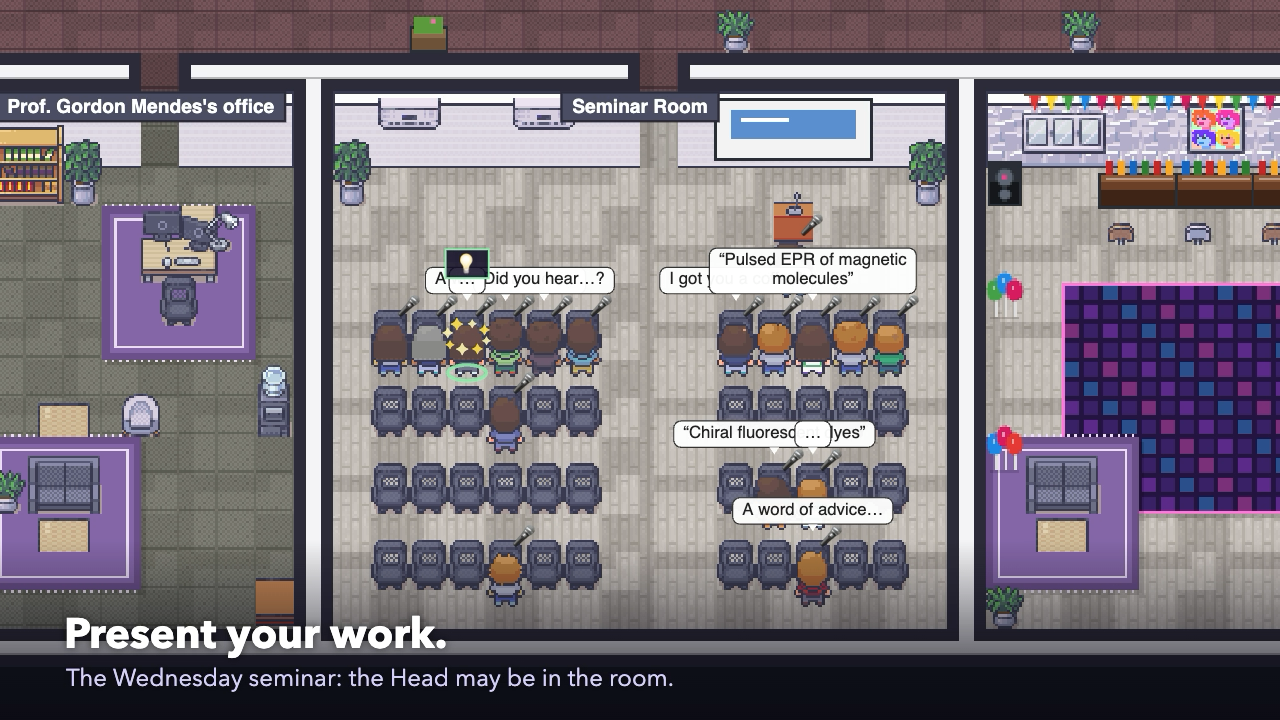
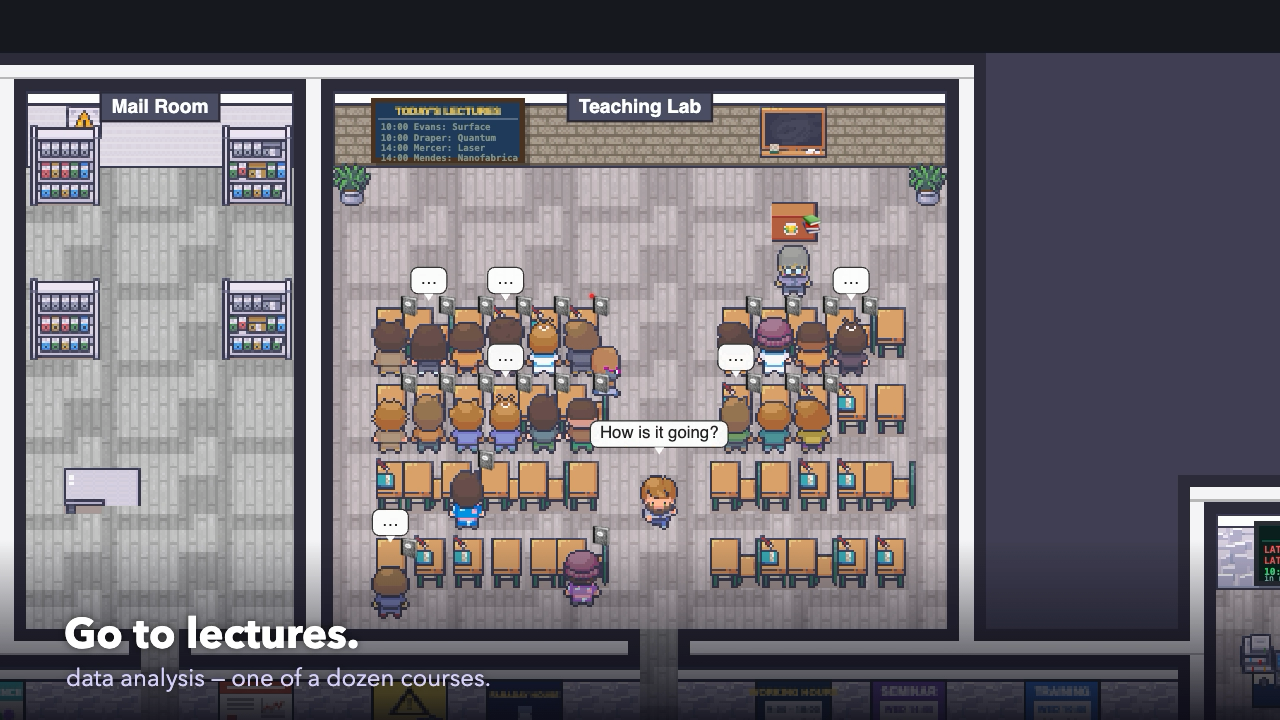
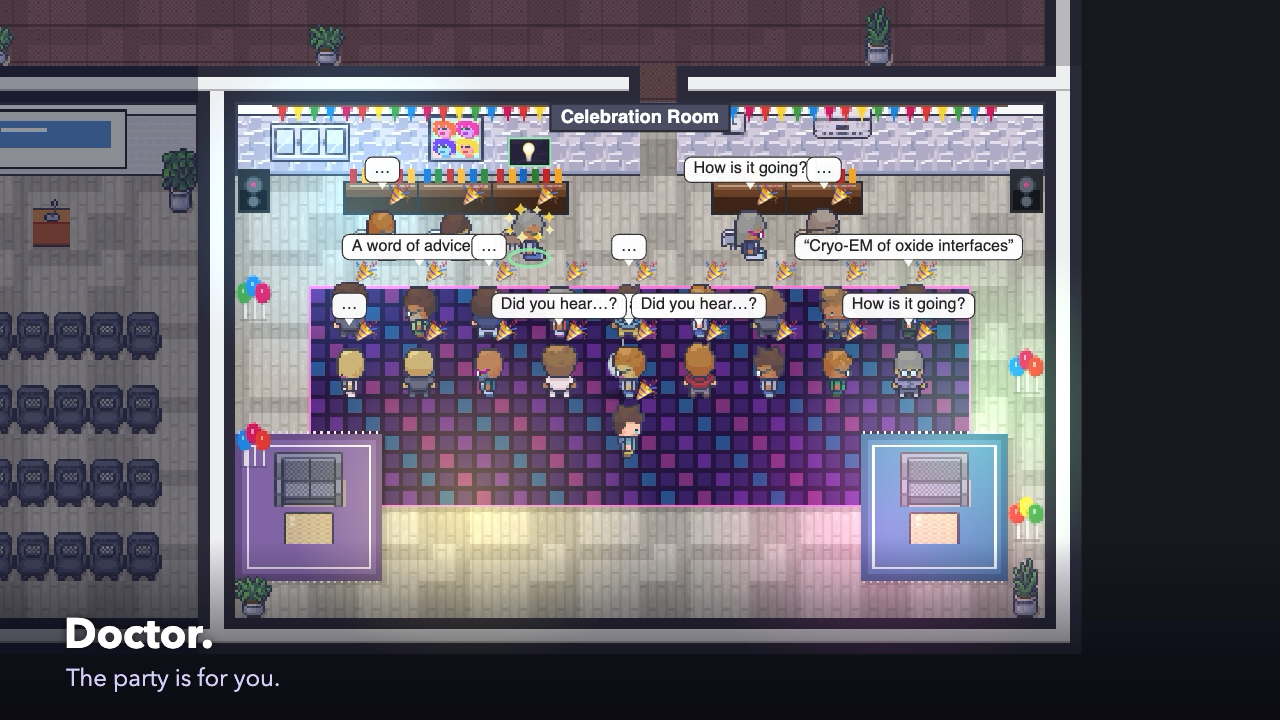
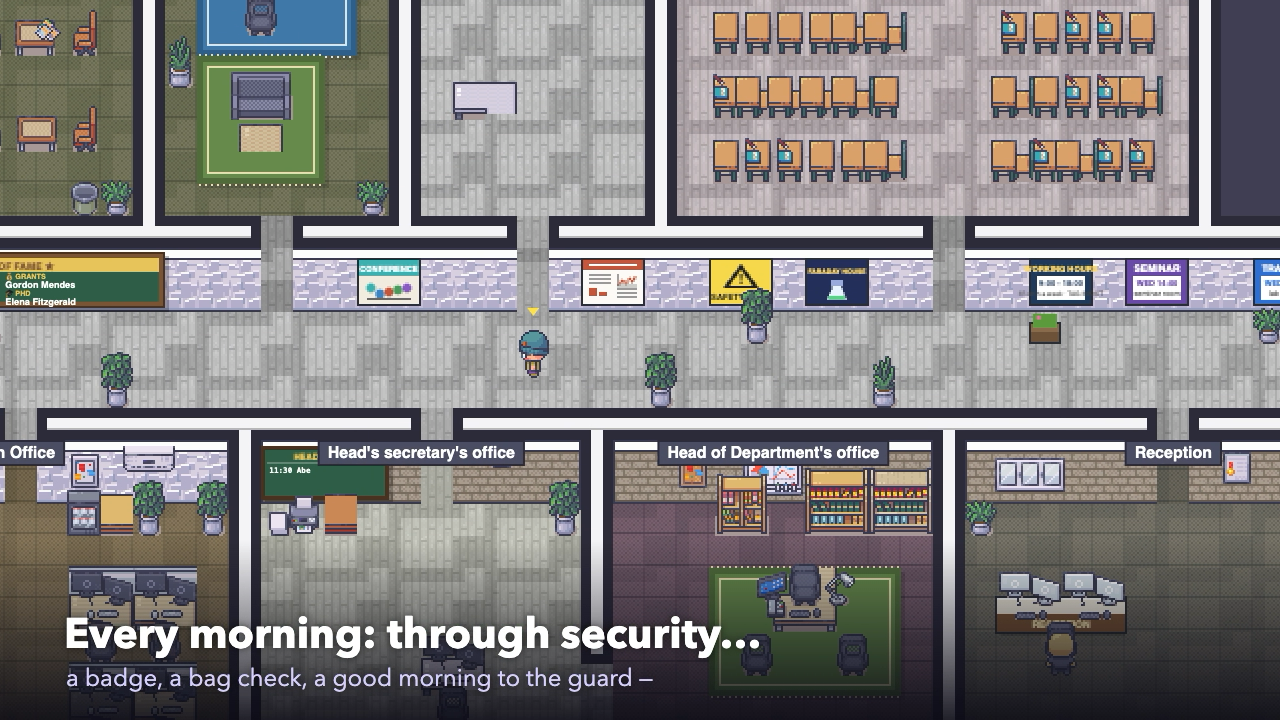
Made by the game itself: every frame is drawn by the real game and the music is its own. Follow a PhD student through one Wednesday — the morning queue at security, coffee with everybody else, the desk, the library, the TEM, the two o'clock seminar, home at six — then a conversation that teaches a skill, lunch, a lecture, and three years later the viva party.
Attributes
- A whole department — six floors, ten research groups with their offices and labs, shared facilities, a workshop and 3D-printing lab, canteen, roof café and terrace, library, seminar and celebration rooms
- Real instruments and real science — XPS, TEM, STEM, FIB, XRD, ToF-SIMS, EPR, NMR, Raman, a dilution fridge; people know real facts about them (core levels, Raman bands, NMR shifts) and answer real questions
- Over a hundred people with minds of their own — what they know, believe and feel, who they trust or resent; they gossip, share or steal ideas, complain to HR, fall out, make up and fall in love
- Your PhD — a topic with three papers, experiments, analysis, writing, referees and rivals; the Wednesday seminar where the audience asks questions; the viva, then postdoc, lecturer and reader, with a lab of your own on the top floor
- Skills you have to find — nobody tells you who can teach what; ask around, get trained on instruments outside your group, make a connection each day, and meet three new goals every week
- Talk to anyone — type or speak to them, email them, or go and ask in person; give your character orders in plain words ("study XPS fitting for an hour, then go and discuss it with Delia")
- A working day — the security gate and its queue, coffee breaks, lunch, lectures, supervision meetings, the Head's diary, late-work permits, the evening guard, parties on Friday evenings
- The Web — every storyline linked up: what led to what, who told whom, why someone feels the way they do
- Your university, your building, your look — name the university and department, choose a compact, large or tower building, and dress your character
- Local AI only — Ollama and IBM Granite 4.2 come with the game; nothing leaves your computer
AI built in
Every person in the building is an AI. The game asks a local model (IBM Granite 4.2 3B by default, or any Ollama model you install from the game's AI window — Qwen, Gemma, a larger Granite) what each person decides and says, giving it only what that person knows and what has happened to them, so their words follow from their own story. Each night a model writes up the day and plans the next day's meetings. The engine (Ollama) is inside the installer and the model downloads on the first launch — no account, no key, no cloud. Without a model the game still runs on its own programmed minds.
How to install
Publish or Perish is free and its source is public, but it is not signed with a paid Microsoft or Apple developer certificate. So the first time you open it, Windows and macOS say they cannot verify it and may even call it possible malware. That is the standard warning for every unsigned app, not a detection of anything. You approve it once, as shown below, and it then opens normally. Only this one app is allowed; nothing else on your computer is changed.
macOS (Apple Silicon and Intel)
1Open the .dmg and drag Publish or Perish into Applications
Double-click the downloaded
.dmgfile (in your Downloads folder). In the window that opens, drag the Publish or Perish icon onto the Applications folder. Then eject the disk image.2Open Publish or Perish once — macOS blocks it. Click “Done”
Open your Applications folder and double-click Publish or Perish. macOS shows “Publish or Perish” Not Opened — Apple could not verify “Publish or Perish” is free of malware…
Click Done. Do not click Move to Bin. This attempt is needed: it is what makes the Open Anyway button appear in the next step.
3Open System Settings → Privacy & Security
Click the Apple menu at the top-left of the screen, choose System Settings…, then click Privacy & Security in the left-hand list (scroll the list down if you don’t see it).
4Scroll down to “Security” and click “Open Anyway”
Scroll the right-hand side all the way down, past the Privacy items, to the Security heading. Under it you will see “Publish or Perish” was blocked to protect your Mac. Click Open Anyway.
The button appears only for about an hour after step 2. If it is missing, repeat step 2 and come back.
5Confirm with “Open Anyway” and your password
macOS asks once more: click Open Anyway, then type your Mac login password (or use Touch ID) and confirm.
Publish or Perish starts. From now on it opens normally with a double-click, and updates install without asking again.
macOS 14 Sonoma and older: instead of steps 3–5, right-click (or Control-click) Publish or Perish in Applications, choose Open, then Open again.
Message says the app “is damaged and can’t be opened”? That is the same block. Open Terminal (Applications → Utilities), paste this line, press Return, and open the app again:
xattr -dr com.apple.quarantine "/Applications/Publish or Perish.app"
Windows (64-bit)
1If your browser warns about the download, choose “Keep”
Chrome or Edge may say the setup file isn’t commonly downloaded. Open the downloads list, click ⋯ next to the file and choose Keep (in Edge: Keep → Show more → Keep anyway).
2Run the setup file — click “More info”
Double-click the downloaded setup file. Microsoft Defender SmartScreen shows a blue Windows protected your PC window. Click the small More info link.
3Click “Run anyway”, then follow the installer
A Run anyway button appears at the bottom. Click it, answer Yes if Windows asks to allow changes, then click Next through the installer and Finish. Publish or Perish is in the Start menu and opens normally from then on.
Built with
A modern stack of well-known scientific Python libraries.
Documentation
Getting started
Download the installer for Windows or the disk image for your Mac and start Publish or Perish. On the first launch the game downloads its AI model, IBM Granite 4.2 3B (about 2.2 GB); the AI bar shows the progress and you can play meanwhile. Choose New game: name your university and building, pick its size, your lab, your PhD topic and your look. How to play opens at the start, and again with ❓ or F1.
Talking to people
Click anyone in your room to see their card — what they know, believe and feel — and talk to them, or type an order in the box at the bottom: "see the XPS technician about peak fitting at 3pm", "go to the library", "ask my supervisor to stay late". 📋 Orders lists everything you can do. ✉ Ask on a card emails a question (the answer comes later) or sends you to ask in person. 🎤 lets you speak instead of typing, and 🔊 reads the answers aloud.
Getting better
🧭 Goals lists what to do next: the safety induction, your supervisor, training on your paper's instrument, and the hidden skills of your topic — each one has a teacher somewhere in the building, and you find them by asking. Each morning one person is worth meeting. Three weekly goals give a bonus. The Career window shows your skills, your ranking and your chances at the viva.
The AI
The 🧠 window shows the engine and the models. Granite 4.2 3B is installed by default; on a Mac with 16 GB or more you can add a larger model for the nightly write-up, or try another one, test how fast it is on your computer and remove those you do not need. Everything runs on your own computer.
First launch on Mac and Windows
The game is not signed by Apple or Microsoft. On a Mac, drag it to Applications and open it; the first time macOS blocks it, so open System Settings › Privacy & Security, scroll down and press Open Anyway (on macOS 14 and older, right-click the app and choose Open). If the disk image will not open, take the macOS zip instead: double-click it and move the app to Applications. On Windows, if "Windows protected your PC" appears, choose More info, then Run anyway. Saves are kept in your own folder, autosaved every Sunday night in the game and when you close the window.
Versions
Disk image and zip for Apple Silicon and Intel.
Windows: pictures were missing on the first launches (people, then walls) while Windows scanned the newly installed game — its server refused some of the hundreds of pictures the window asks for, and they were never tried again. They are now queued and tried again, and the AI starts once the window has loaded.
Windows: the AI now sets itself up on the first launch (the game gave up on a slow first start of its engine and never fetched the model). Mac: the app was called "damaged" once downloaded — its signature is valid now — and it also comes as a zip. A new trailer that follows one day in the department.
First public release. A six-floor department with ten research groups and their labs, a security gate, canteen, roof café and terrace; a hundred people who work, talk, remember and change; your PhD with three papers, hidden skills to find, weekly goals, the seminar, the viva and the career after it. Talk, email or ask anyone in person, by typing or by voice. The AI engine (Ollama) is inside the installer and the model, IBM Granite 4.2 3B, downloads itself on the first launch. Windows installer and portable zip, and macOS disk images for Apple Silicon and Intel.
Part of the Kherve Tools family
Applications made by a scientist, for scientists.