
KherveNoise
AvailableRemove noise from a spectrum — and see exactly what was removed.
Spectral denoising for spectroscopy with no training data: Variational Mode Decomposition, wavelet shrinkage and an FFT low-pass filter, each with a live view of what it keeps and what it throws away, and an Auto rule that tunes it to the spectrum's own noise floor. It is KherveFitting's Spectral Denoising tool as an app of its own — the same methods, controls, plots and numbers — for XPS, Raman, FTIR, XAS, EELS and any other spectrum. Import Excel, VAMAS and the instrument formats KherveFitting reads, denoise one spectrum or a whole folder, and export straight back to a KherveFitting workbook for peak fitting.
Attributes
- Three methods, no training data — Variational Mode Decomposition, wavelet shrinkage (db4, db8, sym4, sym8, coif5; soft or hard) and an FFT low-pass filter
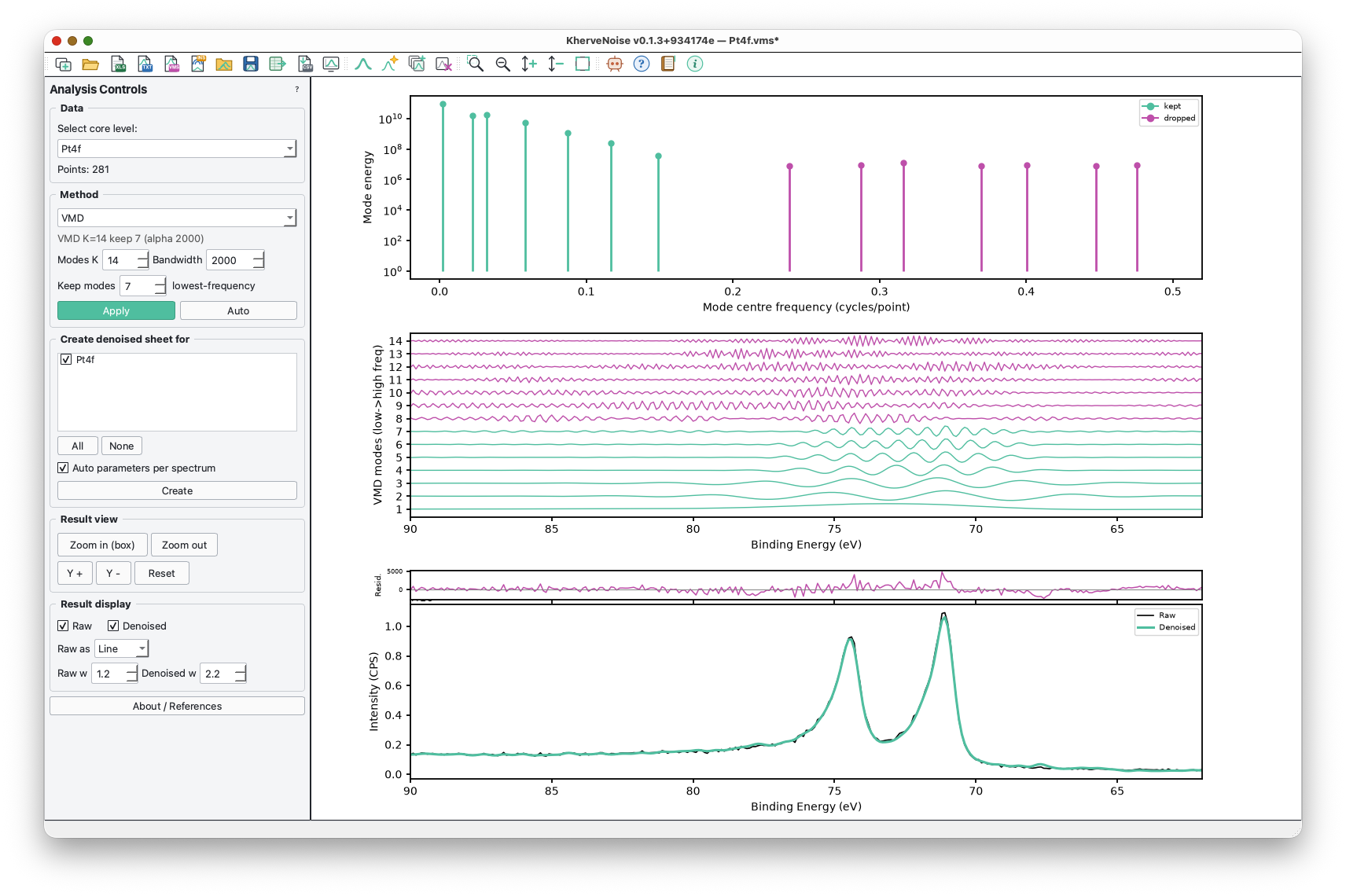
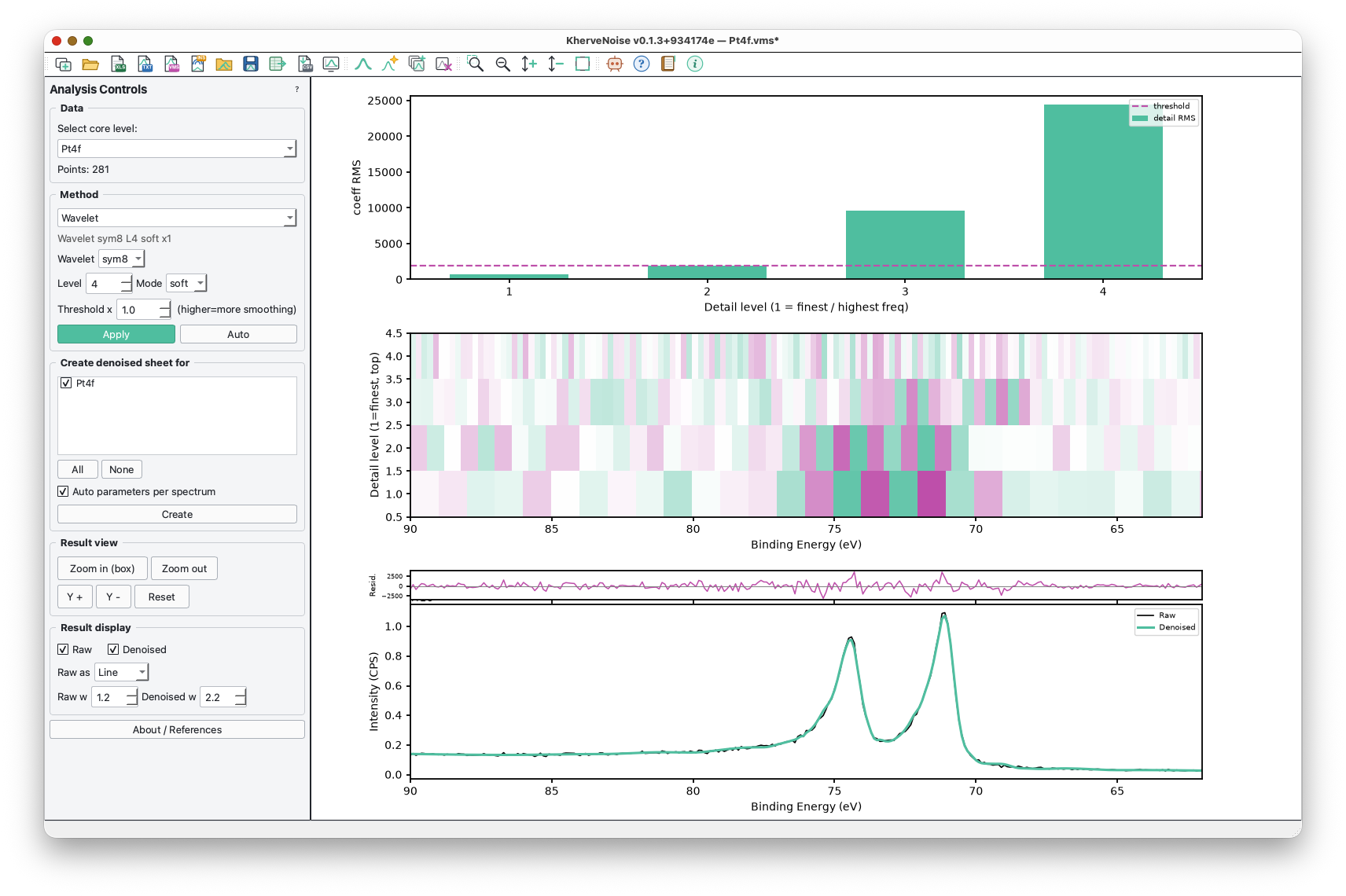
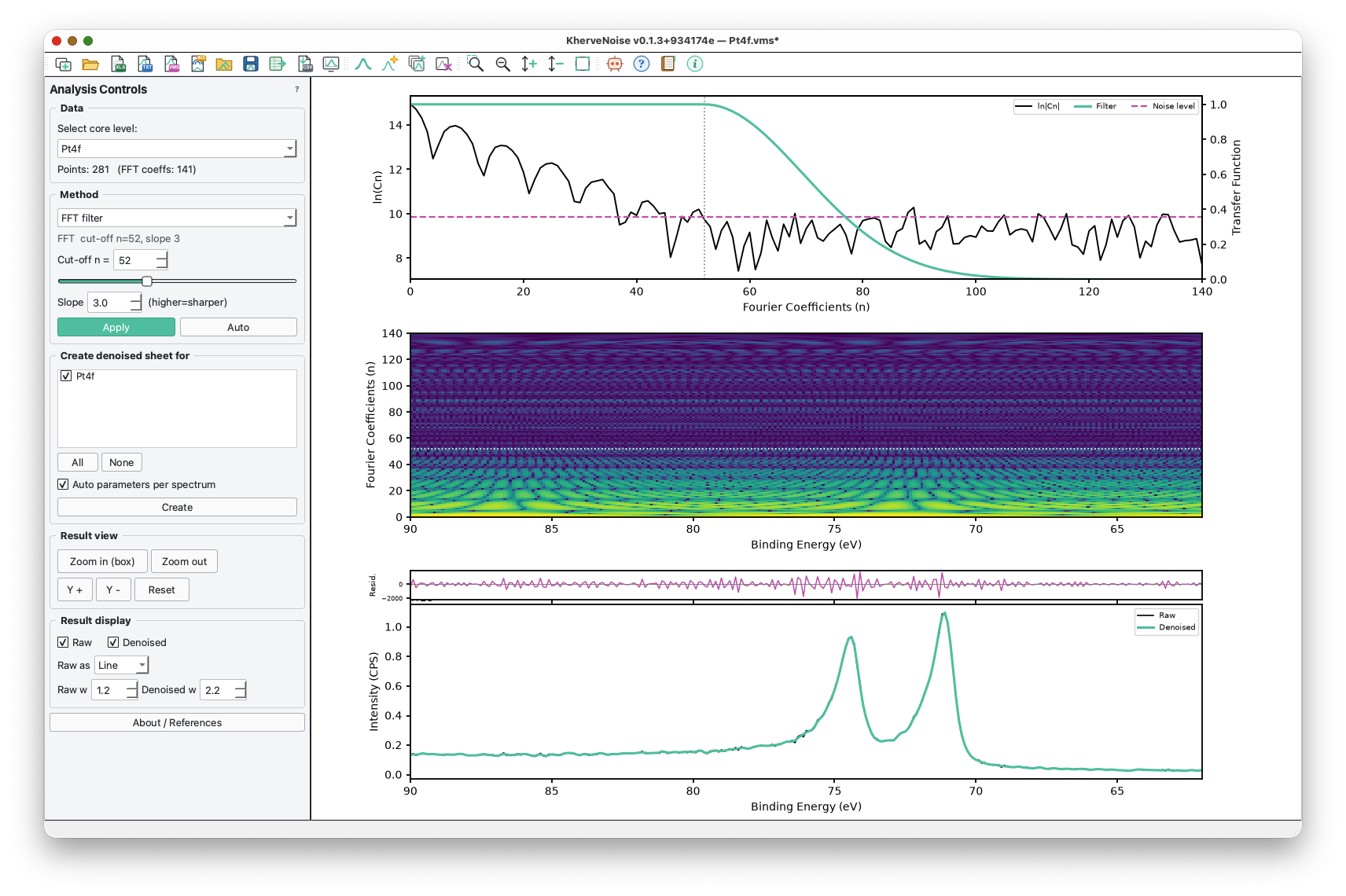
- See what each method keeps and drops — VMD mode energies and the modes themselves, wavelet detail levels and scalogram, Fourier coefficients and the filter's transfer function — above a Raw vs Denoised plot with a residual strip
- Auto rule — tunes each method to the spectrum's own noise floor; a good result leaves a residual that looks like structureless noise
- Batch create — denoise many spectra at once, each auto-tuned or with the same settings; the originals are never changed, results are named C1s_vmd, C1s_wav, C1s_fft
- Import Excel (KherveFitting layout), VAMAS (.vms), plain data files (.asc, .txt, .dat, .xy, .csv) and instrument files — Thermo Avantage / VGD / AVG, Kratos .kal, PHI .spe / .pro, Scienta Omicron, MRS, VG-Microtech, Igor, Diamond Light Source (.nxs) and SDP — read exactly as KherveFitting reads them; drag and drop, or a whole folder at once
- Export to a KherveFitting workbook ready for peak fitting, to CSV / text, or the figure to PNG, SVG or PDF; projects save as .knoise
- Works on any spectrum — binding-energy axis for core levels, and the right axis and direction for FTIR, Raman, EELS, XAS and XRD
- Box zoom, line or scatter display, undo / redo, recent files, a long how-to tooltip on every toolbar icon and an in-app User Guide (F1)
- Same numbers as KherveFitting — the denoising maths is tested bit-for-bit against a verbatim copy of KherveFitting's own code
AI built in
Connect Claude Desktop, Claude Code or Cursor over MCP (AI ▸ Connect to Claude) and let it drive the live window: import spectra, preview and compare the three methods, tune parameters, create denoised copies, look at the figure and export. Local-only, and off until you enable it.
How to install
KherveNoise is free and its source is public, but it is not signed with a paid Microsoft or Apple developer certificate. So the first time you open it, Windows and macOS say they cannot verify it and may even call it possible malware. That is the standard warning for every unsigned app, not a detection of anything. You approve it once, as shown below, and it then opens normally. Only this one app is allowed; nothing else on your computer is changed.
macOS (Apple Silicon and Intel)
1Open the .dmg and drag KherveNoise into Applications
Double-click the downloaded
.dmgfile (in your Downloads folder). In the window that opens, drag the KherveNoise icon onto the Applications folder. Then eject the disk image.2Open KherveNoise once — macOS blocks it. Click “Done”
Open your Applications folder and double-click KherveNoise. macOS shows “KherveNoise” Not Opened — Apple could not verify “KherveNoise” is free of malware…
Click Done. Do not click Move to Bin. This attempt is needed: it is what makes the Open Anyway button appear in the next step.
3Open System Settings → Privacy & Security
Click the Apple menu at the top-left of the screen, choose System Settings…, then click Privacy & Security in the left-hand list (scroll the list down if you don’t see it).
4Scroll down to “Security” and click “Open Anyway”
Scroll the right-hand side all the way down, past the Privacy items, to the Security heading. Under it you will see “KherveNoise” was blocked to protect your Mac. Click Open Anyway.
The button appears only for about an hour after step 2. If it is missing, repeat step 2 and come back.
5Confirm with “Open Anyway” and your password
macOS asks once more: click Open Anyway, then type your Mac login password (or use Touch ID) and confirm.
KherveNoise starts. From now on it opens normally with a double-click, and updates install without asking again.
macOS 14 Sonoma and older: instead of steps 3–5, right-click (or Control-click) KherveNoise in Applications, choose Open, then Open again.
Message says the app “is damaged and can’t be opened”? That is the same block. Open Terminal (Applications → Utilities), paste this line, press Return, and open the app again:
xattr -dr com.apple.quarantine "/Applications/KherveNoise.app"
Windows (64-bit)
1If your browser warns about the download, choose “Keep”
Chrome or Edge may say the setup file isn’t commonly downloaded. Open the downloads list, click ⋯ next to the file and choose Keep (in Edge: Keep → Show more → Keep anyway).
2Run the setup file — click “More info”
Double-click the downloaded setup file. Microsoft Defender SmartScreen shows a blue Windows protected your PC window. Click the small More info link.
3Click “Run anyway”, then follow the installer
A Run anyway button appears at the bottom. Click it, answer Yes if Windows asks to allow changes, then click Next through the installer and Finish. KherveNoise is in the Start menu and opens normally from then on.
Built with
A modern stack of well-known scientific Python libraries.
Documentation
Getting started
Download the installer for Windows or the disk image for macOS from this page and start KherveNoise; the portable zip runs without installing. To run from source instead, install the requirements and run python KherveNoise.py. Open a file or drag it onto the window, pick a spectrum and a method, and KherveNoise applies its Auto parameters straight away. Judge the result in the bottom panel — Raw against Denoised, with the residual above — then Create the denoised spectra you want to keep.
The three methods
VMD splits the spectrum into K band-limited modes and keeps the lowest-frequency ones. Wavelet shrinkage decomposes it to a chosen level and shrinks the detail coefficients below the universal threshold — it keeps sharp peaks well. The FFT filter passes Fourier coefficients up to a cut-off and rolls the rest off with an adjustable slope. Every method works on the spectrum minus the straight line joining its end points, so a sloping background does not leak into the filtering.
Reading the figure
The top two panels show what the method is doing — VMD mode energies and the modes, wavelet level RMS and scalogram, or the Fourier coefficients and the filter. Kept components are green and dropped ones magenta. The bottom panel is Raw (black) against Denoised (green) with the residual above. If you can see peaks in the residual, the filter is too strong.
Importing and exporting
File ▸ Open replaces the current spectra and File ▸ Import adds to them; Import ▸ All Files in a Folder takes a whole folder. Instrument files are listed per vendor under Import ▸ Instrument. Export ▸ To KherveFitting writes a workbook in KherveFitting's layout with the denoising parameters in the Experimental Description block, so the cleaned spectra go straight into peak fitting.
Connect to Claude
AI ▸ Connect to Claude sets up Claude Desktop, Claude Code or Cursor to drive the live window over MCP — local only, and off until you turn it on.
On macOS
The disk image is ad-hoc signed but not notarised, so the first time you open KherveNoise on a Mac, right-click it in Applications and choose Open. KherveNoise also opens .knoise projects and spectrum files from Finder. On Windows the installer is unsigned: choose More info, then Run anyway.
Also inside KherveFitting
The same Spectral Denoising tool is built into KherveFitting (Tools menu). KherveNoise is the stand-alone app for when you only want to clean spectra, or to denoise a folder of them before fitting.
Updates
An installed copy checks GitHub for a newer release (Help ▸ Check for Updates) and offers the release page. A copy run from a git checkout pulls new commits itself, when it is safe to.
Versions
Disk image for Apple Silicon and Intel.
Patch release: AI ▸ Connect to Claude now opens. In 0.1.5 the dialog failed to load, so the menu item did nothing. Windows installer and portable zip, and macOS disk images for Apple Silicon and Intel.
First public release. Three denoising methods — VMD, wavelet and FFT filter — each with a view of what it keeps and drops, an Auto rule, batch create and a Raw / Denoised / residual figure. Import Excel, VAMAS, plain data files and the Thermo, Kratos, PHI, Scienta, MRS, VG-Microtech, Igor, Diamond and SDP instrument formats; export to a KherveFitting workbook, CSV or a figure. Undo, .knoise projects, an in-app User Guide, and Claude over MCP. Windows installer and portable zip, and macOS disk images for Apple Silicon and Intel.
Part of the Kherve Tools family
Applications made by a scientist, for scientists.