KherveBook
AvailableA computational notebook — and the future home of every Kherve tool.
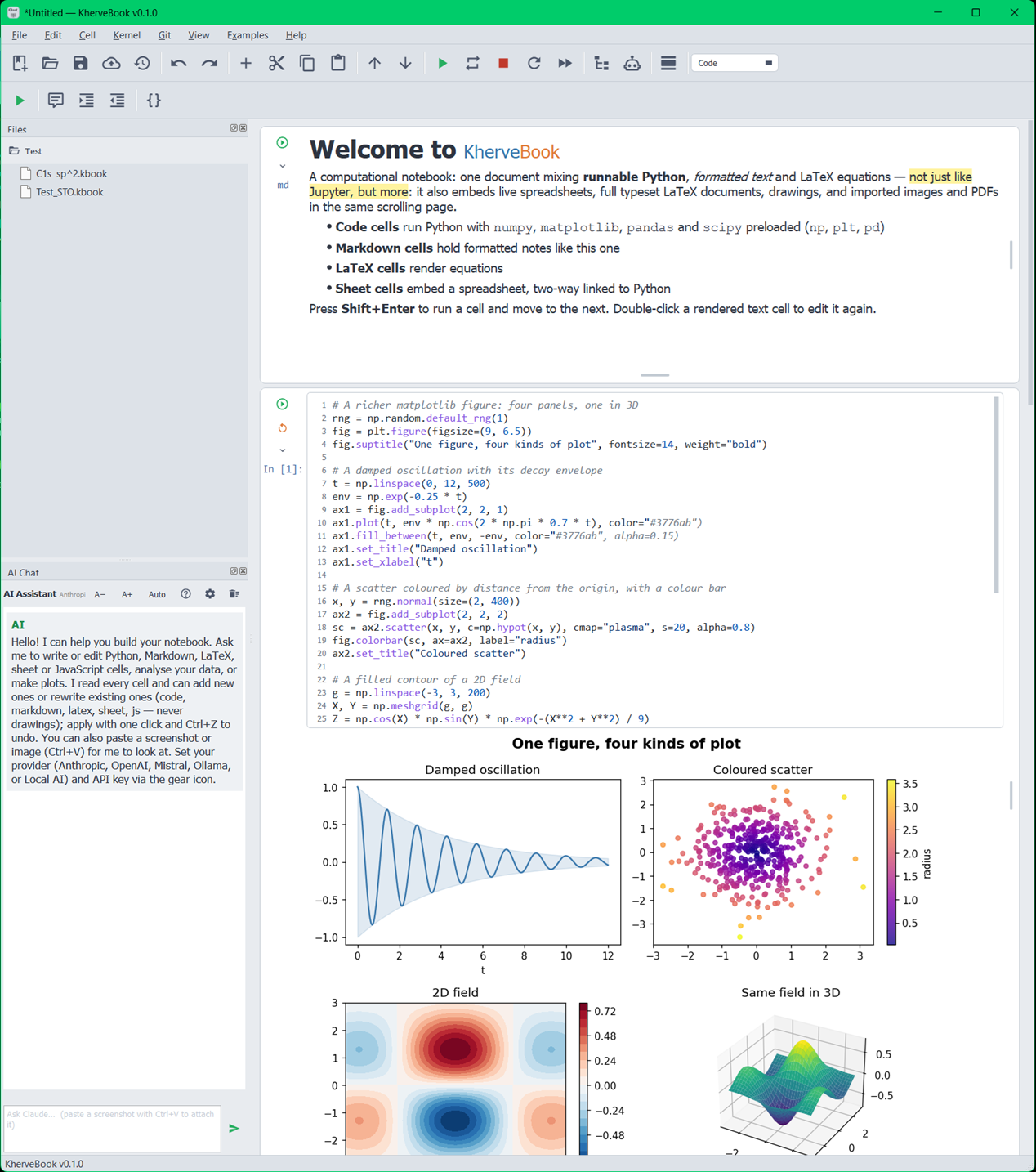
A Jupyter-inspired computational notebook as a native desktop app. One document mixes Python code cells run in a live kernel with inline matplotlib figures, rendered Markdown, and LaTeX equations. KherveBook is the hub of the family: over time every Kherve application will live inside it as one workspace.
Attributes
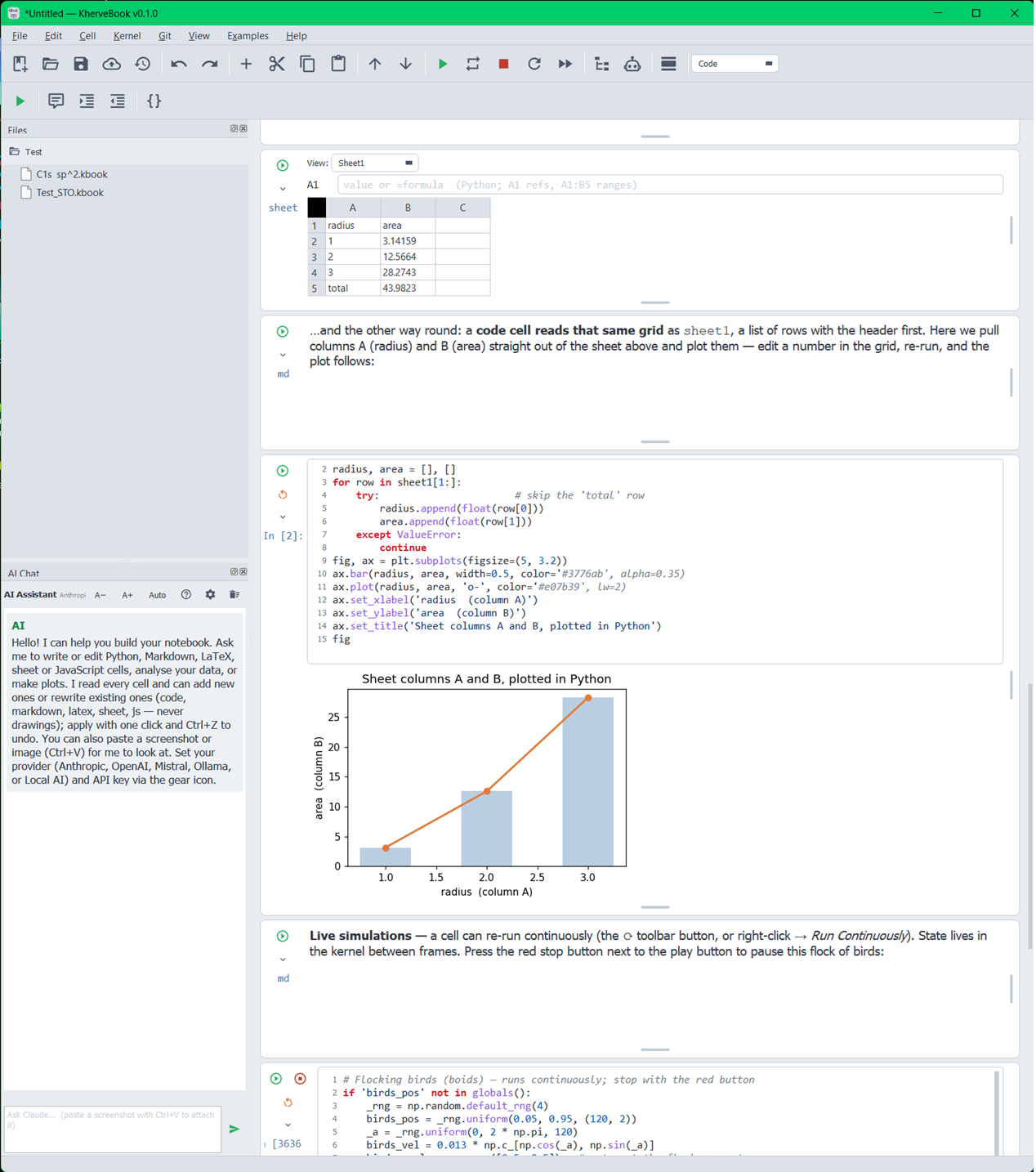
- Python code cells executed in a shared in-process kernel, with In [n] counters and stdout/stderr capture
- Inline matplotlib figures rendered directly under the cell that produced them
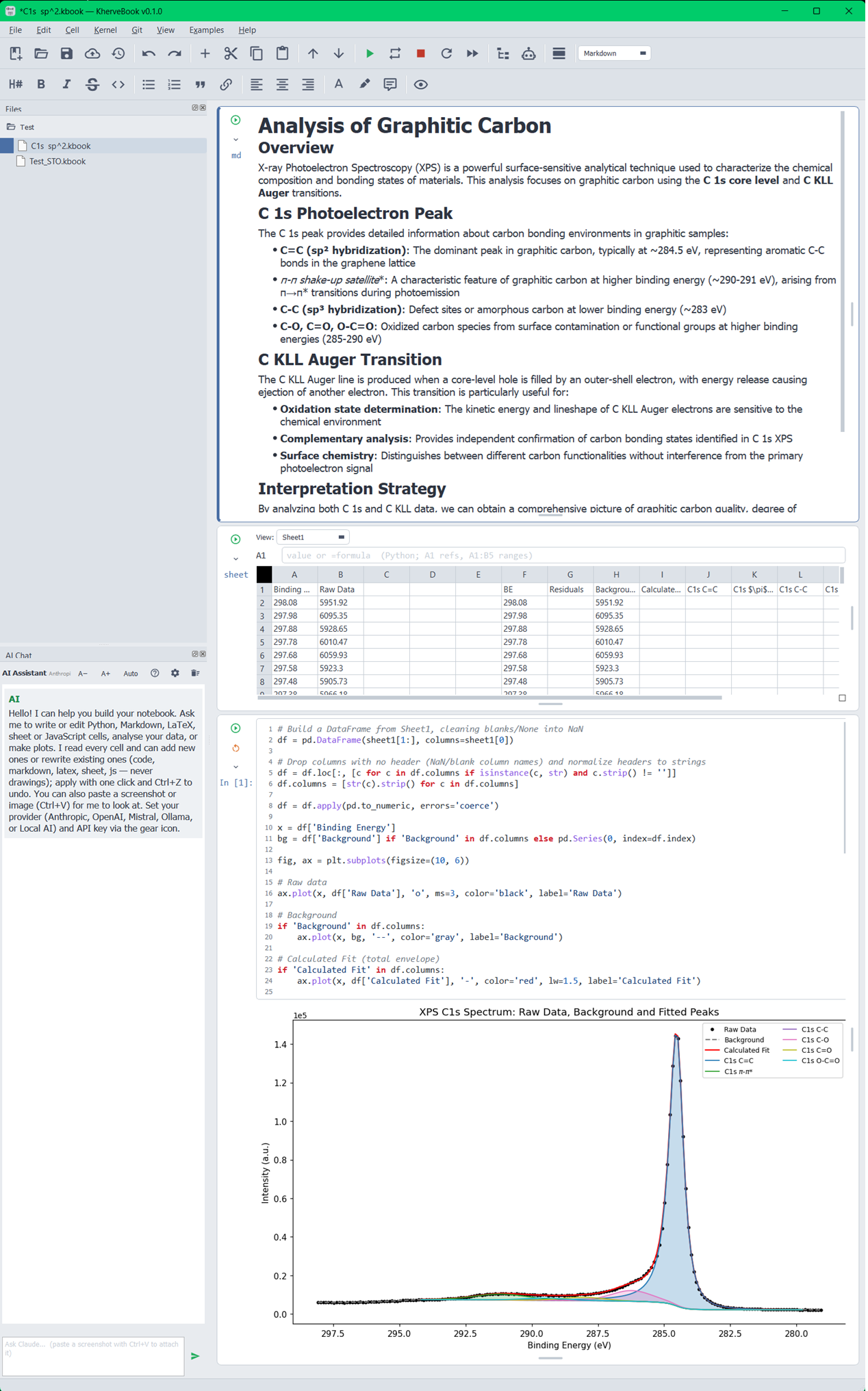
- Markdown cells for rich text — double-click to edit, Shift+Enter to render
- LaTeX cells rendered as equations
- Jupyter-style echo of the trailing expression in a code cell
- Drop an Excel workbook (.xlsx / .xlsm) straight into a sheet cell
- Documents saved as .kbook — a plain, inspectable JSON format
- Compiled LaTeX rendering through the tectonic engine
AI built in
A built-in AI chat assistant lives in the notebook — pick a provider, ask questions about your analysis, and work through problems next to your code and figures.
How to install
KherveBook is free and its source is public, but it is not signed with a paid Microsoft or Apple developer certificate. So the first time you open it, Windows and macOS say they cannot verify it and may even call it possible malware. That is the standard warning for every unsigned app, not a detection of anything. You approve it once, as shown below, and it then opens normally. Only this one app is allowed; nothing else on your computer is changed.
Windows (64-bit)
1If your browser warns about the download, choose “Keep”
Chrome or Edge may say the setup file isn’t commonly downloaded. Open the downloads list, click ⋯ next to the file and choose Keep (in Edge: Keep → Show more → Keep anyway).
2Run the setup file — click “More info”
Double-click the downloaded setup file. Microsoft Defender SmartScreen shows a blue Windows protected your PC window. Click the small More info link.
3Click “Run anyway”, then follow the installer
A Run anyway button appears at the bottom. Click it, answer Yes if Windows asks to allow changes, then click Next through the installer and Finish. KherveBook is in the Start menu and opens normally from then on.
Built with
A modern stack of well-known scientific Python libraries.
Examples
- ARPES — band maps, cuts, hv scans, self-energy analysis
- XPS — peak fitting, quantification, advanced workflows
- XRD — diffraction patterns and refinement examples
- Spectroscopy — NMR, FTIR, EELS, EDX, SIMS
- Thermal & surface analysis — TGA, BET
- LaTeX, SVG, and spreadsheet-cell examples
Documentation
Getting started
Install the requirements with pip install -r requirements.txt, then run python KherveBook.py. A new document opens with an empty code cell: type Python, press Shift+Enter to run the cell and move to the next one.
Cells
Three cell types can be mixed freely in one document. Code cells run in a shared in-process kernel, so variables persist between cells like in Jupyter. Markdown cells render as rich text — double-click one to edit its source. LaTeX cells render equations.
File format
Documents save as .kbook, a plain JSON serialisation of every cell and its outputs — friendly to version control and scripting. Nothing is hidden in a binary container.
The example gallery
The Examples menu ships dozens of ready-to-run notebooks across ARPES, XPS, XRD, NMR, FTIR, SIMS, TGA, BET, EDX and EELS — open one and run it cell by cell to learn the workflow for your technique.
Versions
Note (rich-text) cells and File-attachment cells with inline previews for xlsx, ksheet and kfit; SVG drawing tools with grid and snap that open in KhervePaint; open code in KhervePY and sheets in KherveSheet with reload-on-save; and Help ▸ Report an Issue.
A Jupyter-inspired computational notebook as a native desktop app.
Part of the Kherve Tools family
Applications made by a scientist, for scientists.